This refers to the Guest Inspect review feature in our Chrome Extension. If you have not installed it yet, please do so here.
Step 1: Find the Guest Message or Reservation
AirBnB Guests
Open up the AirBnB hosting dashboard and navigate to your messages with the guest you’re trying to review, or to the reservation page if one exists. The messages page URL will look like this: https://www.airbnb.com/hosting/messages/1234567890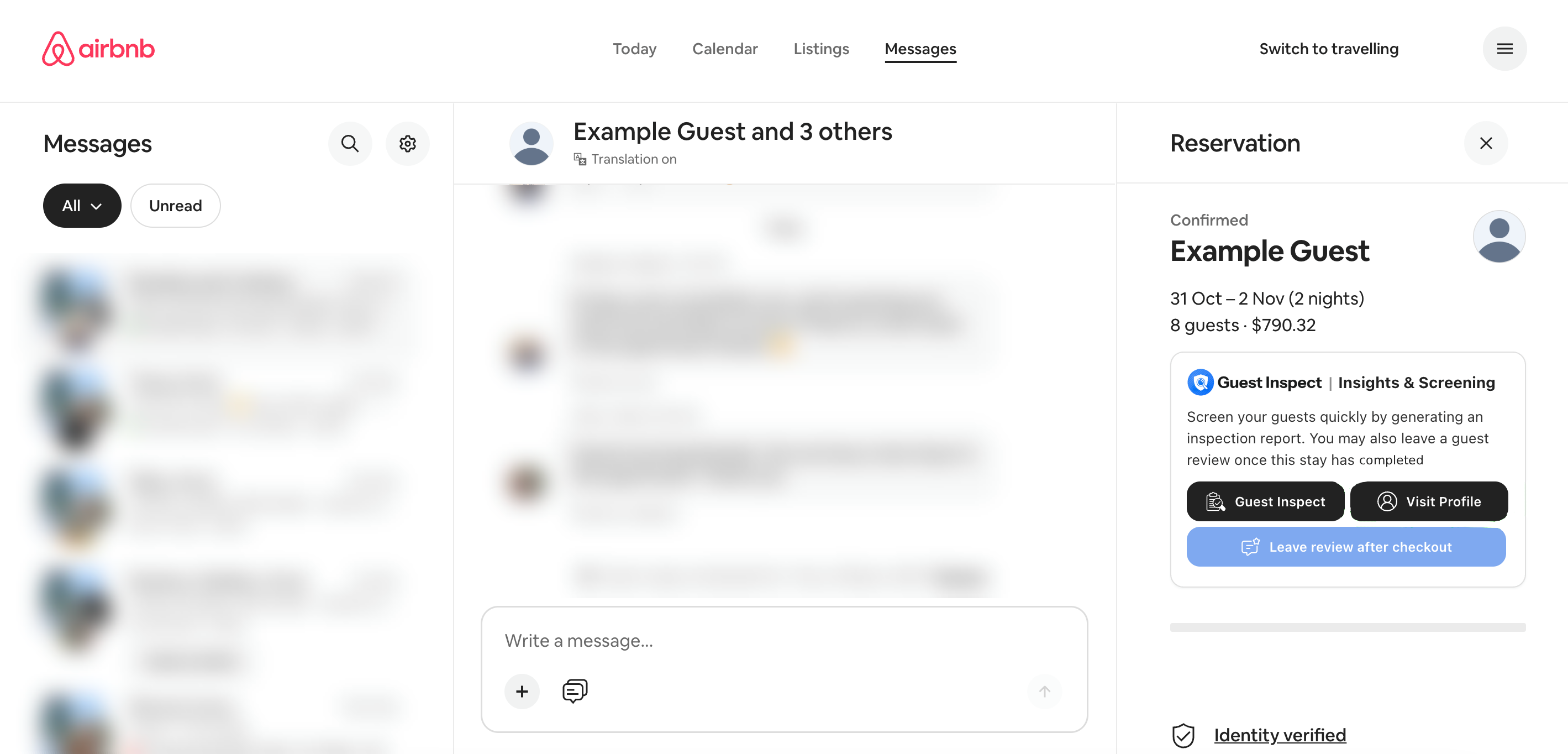
Booking.com Guests
Open up the Booking.com hosting extranet and navigate to the reservation page containing the guest you’re trying to review. The reservation page URL will look like this: https://admin.booking.com/hotel/hoteladmin/extranet_ng/manage/booking.html?res_id=1234567890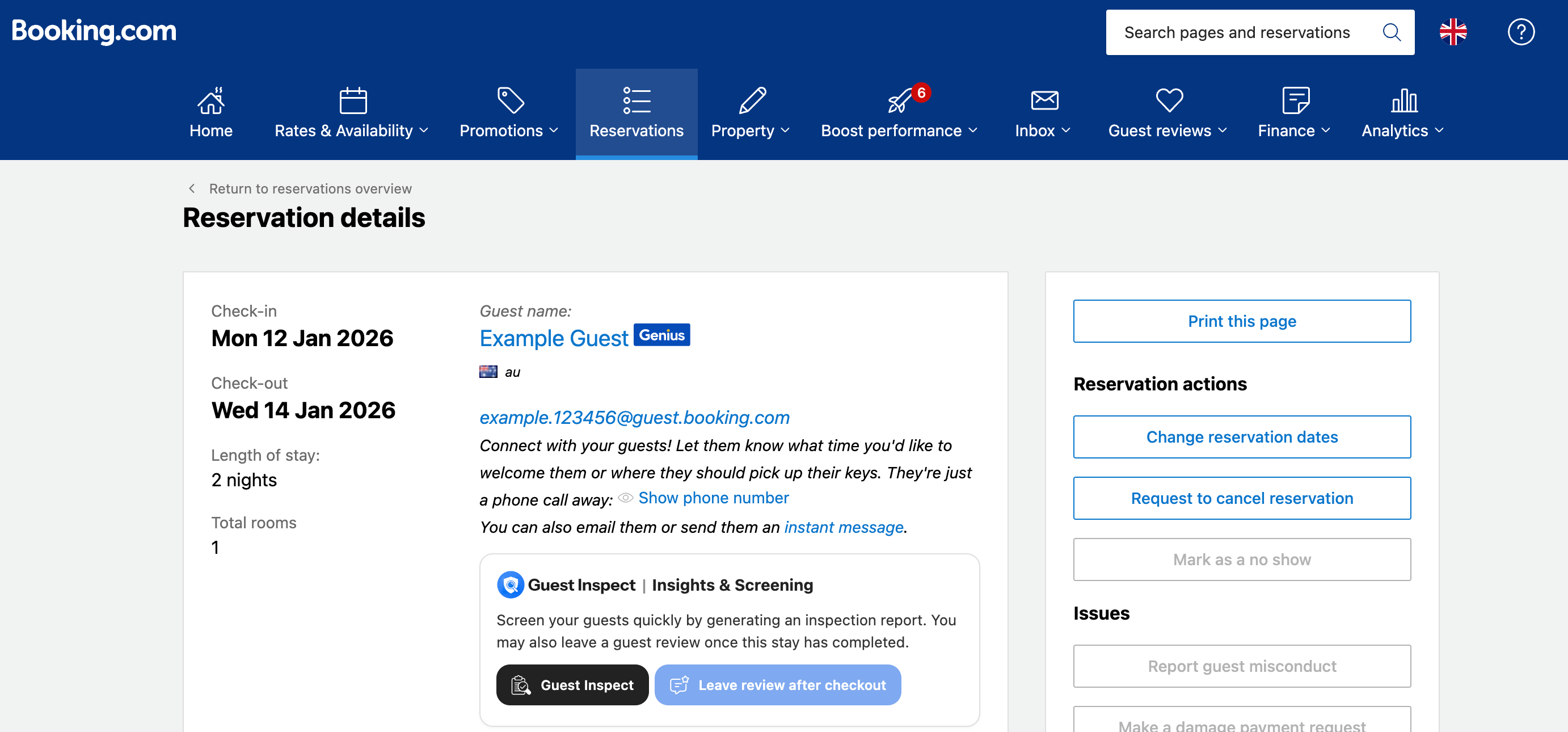
Step 2: Click the Leave Review Button
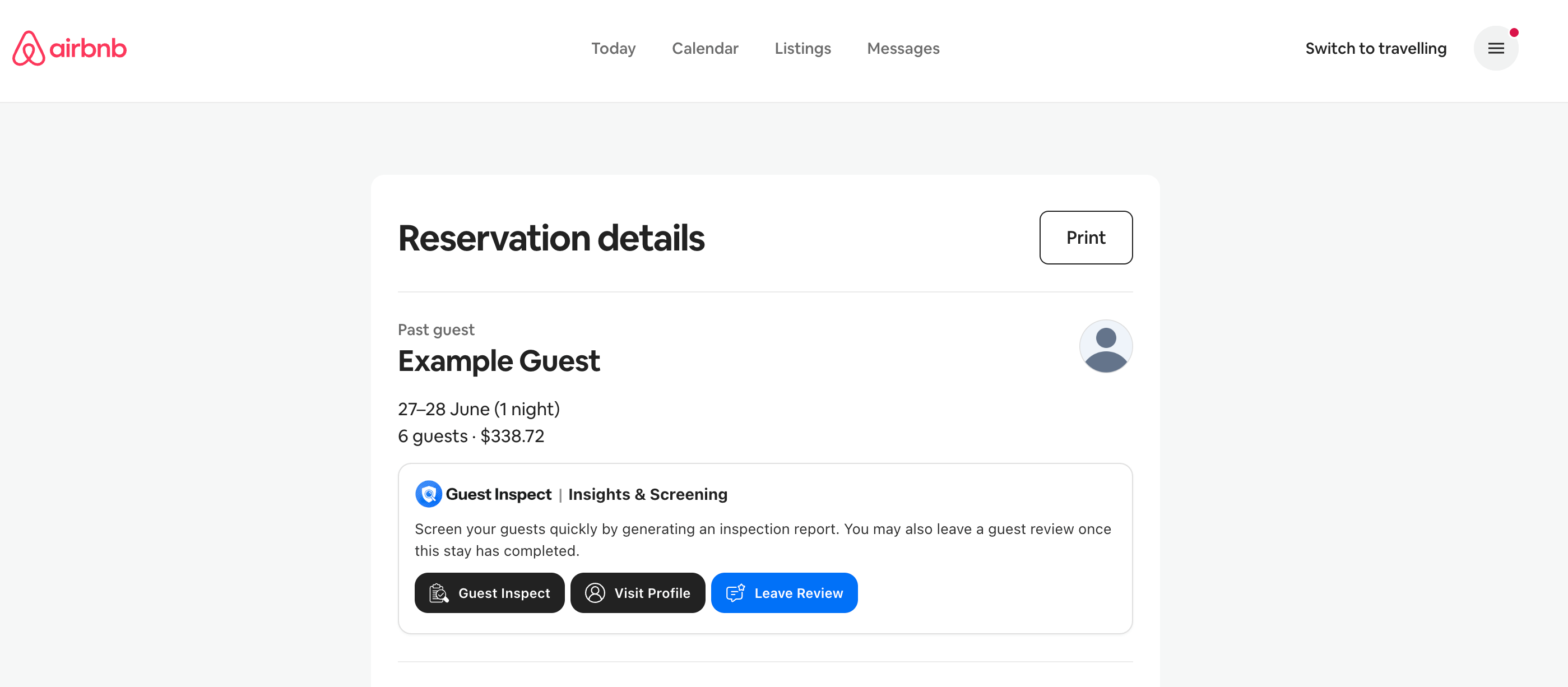
Assuming you have correctly installed and logged into the Chrome extension, it will create an area on the page with a blue Leave Review button. This sometimes may take a few seconds to appear, and depending on the rental platform may appear in different places. Please refer to the images above which show the location for AirBnB and Booking.com. It is important to note that you will only be able to leave a review after a reservation has completed. The button will be disabled until such time.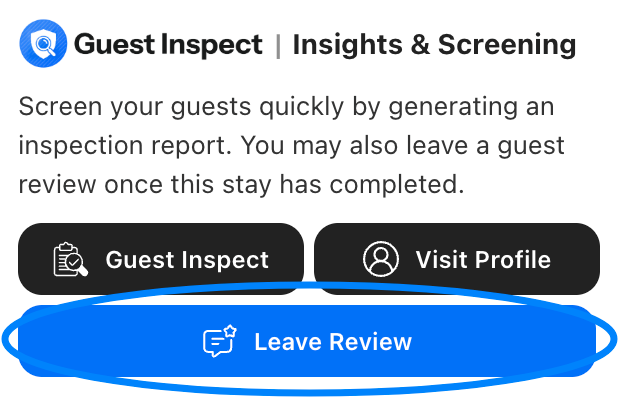
Step 3: Fill in the Review
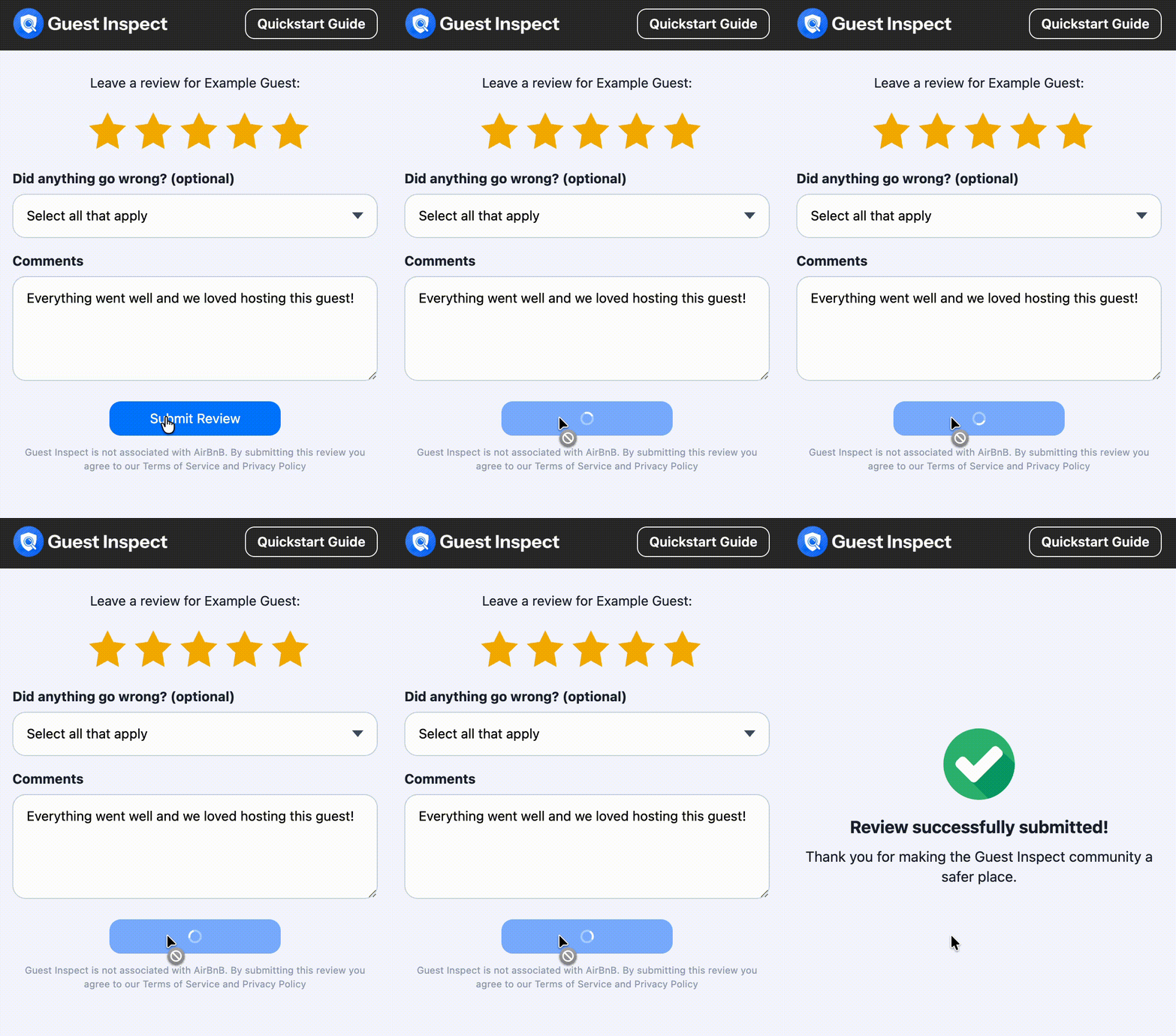
The submit review window has 3 main sections: overall star rating, incidents (optional), and review comment.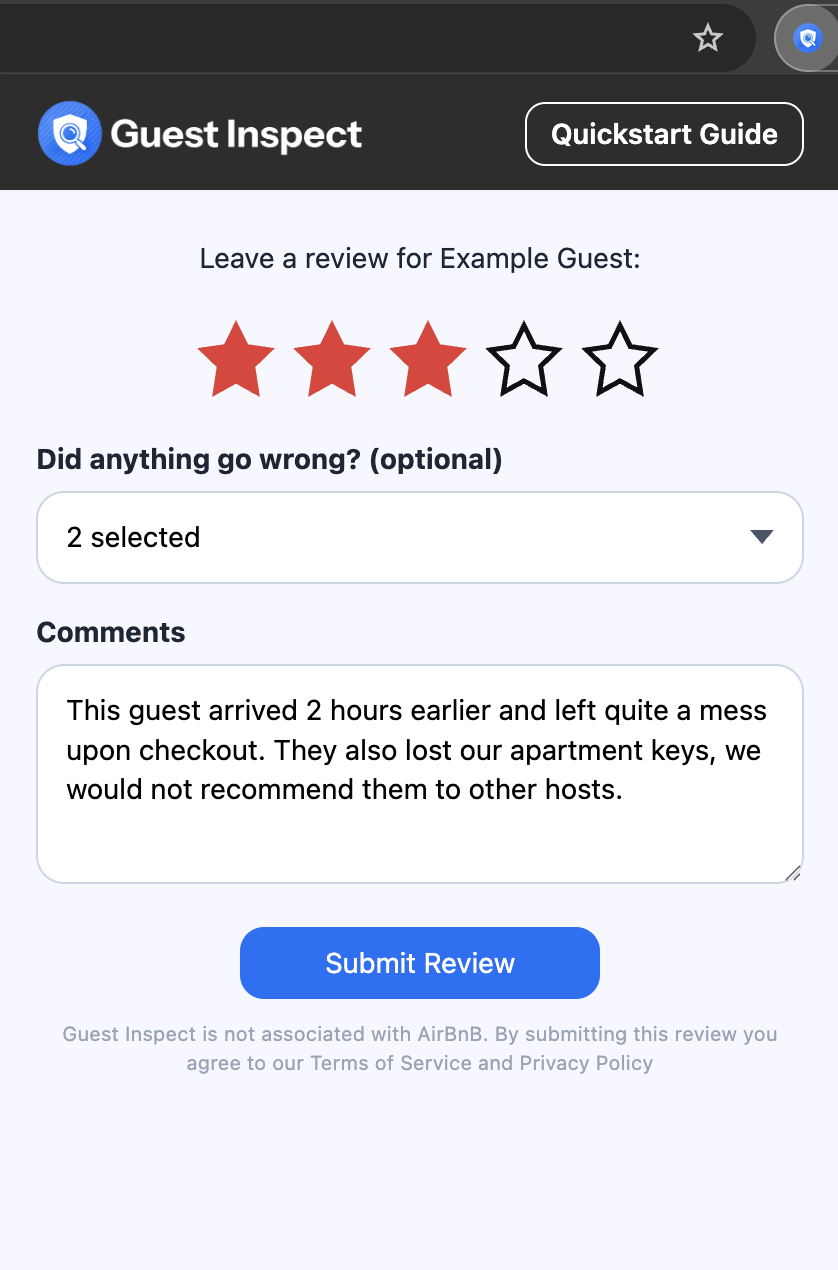
Overall Star Rating
Please click on the star corresponding to the overall public rating that you would give this guest out of 5. The stars will fill in once clicked. As a general rule of thumb, please follow these rating guidelines:
You would recommend this guest to other hosts:
As a general rule of thumb, please follow these rating guidelines:
You would recommend this guest to other hosts:
- 5 Stars: Guest followed all rules and no incidents occurred.
- 4 Stars: Guest may have broken 1 minor rule but was otherwise ok.
- 3 Stars: Guest caused 1 or more incidents or broke multiple rules.
- 2 Stars: Guest caused several major incidents requiring extra cleaning.
- 1 Star: Guest caused significant damage to your property, forcing you to cancel or delay future reservations, or you felt threatened as a host.
Incidents (optional)
This part of the review is optional and should only be used if your guest caused any incidents during their stay. Click the dropdown and select as many incidents that are applicable. If you cannot find a preset incident that applies, click the something else option then briefly fill in what happened.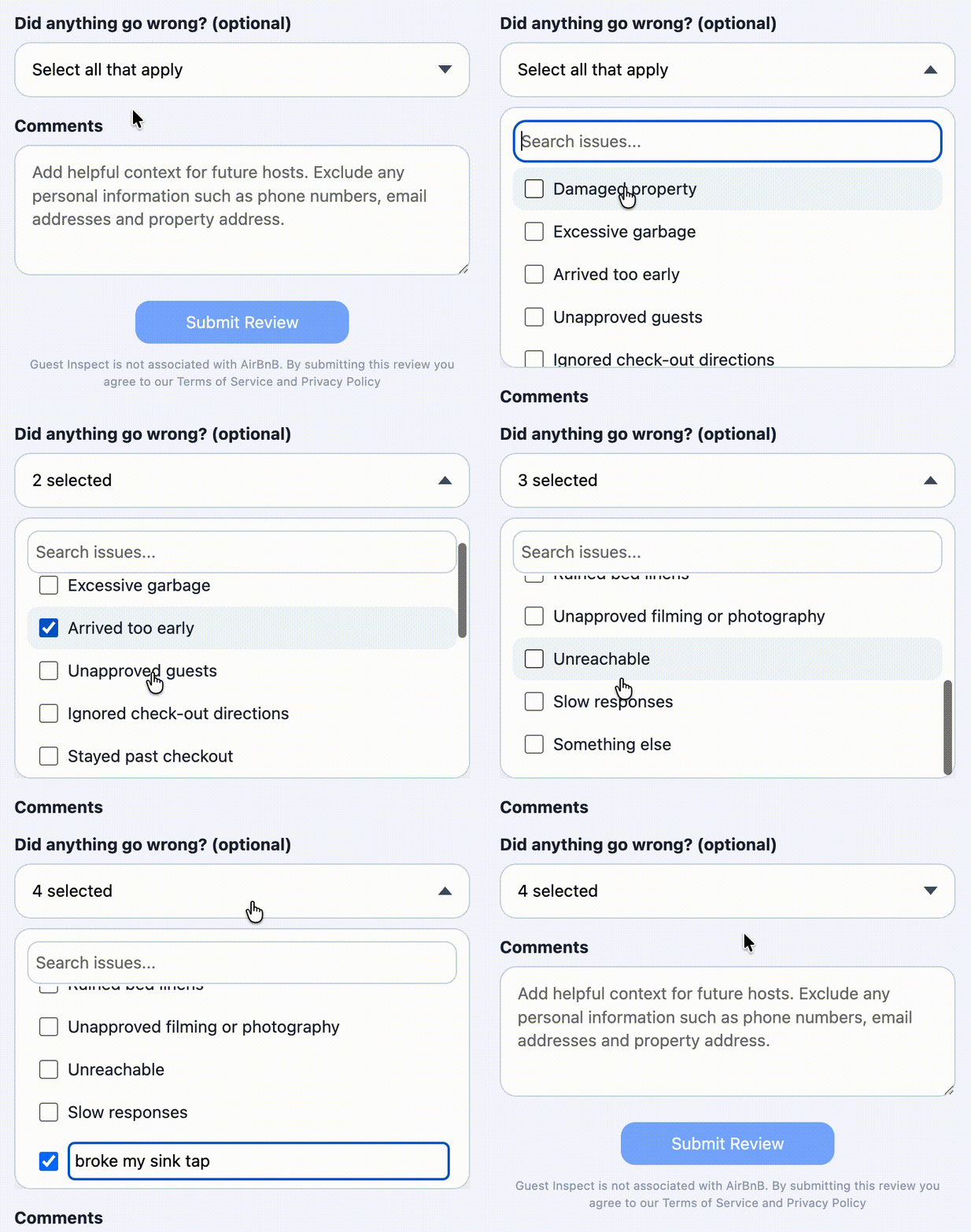
Review Comment
Ensure your review comments DO NOT include any personal information about the guest such as, but not limited to, phone numbers, email addresses and property address. Reviews in violation of this will be removed.
Step 4: Submit the Review
Once you’ve filled out the required fields (star rating & comment), click the blue Submit Review button at the bottom of the window. After a few seconds you will see a green tick if your review submitted successfully.