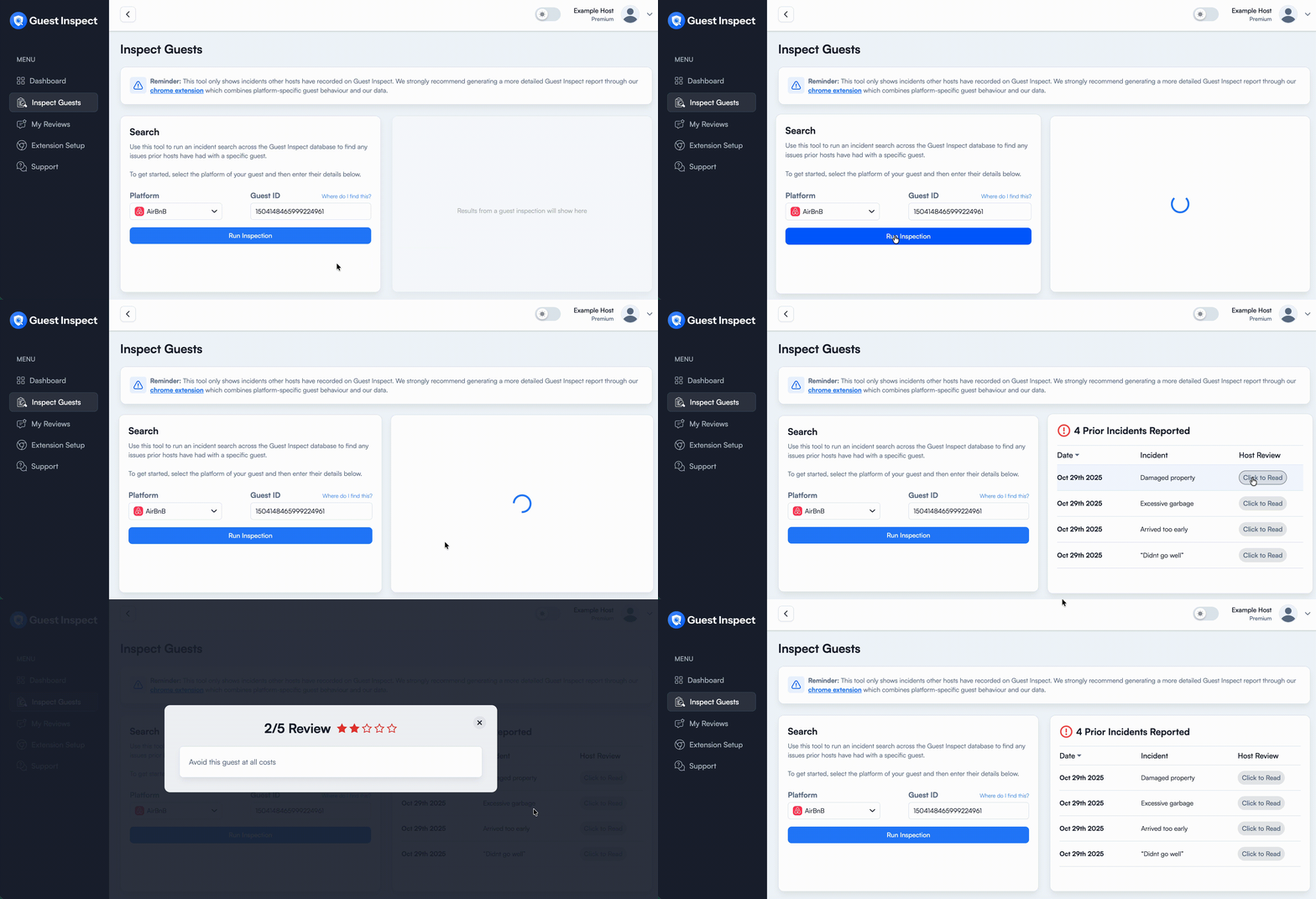
This refers to the Guest Inspection feature in our website dashboard. Alternatively, a more detailed report can be generated through our Chrome extension.
Step 1: Find the Guest Message or Reservation
AirBnB Guests
Open up the AirBnB hosting dashboard and navigate to your messages with the guest you’re trying to inspect. The messages page URL will look like this: https://www.airbnb.com/hosting/messages/1234567890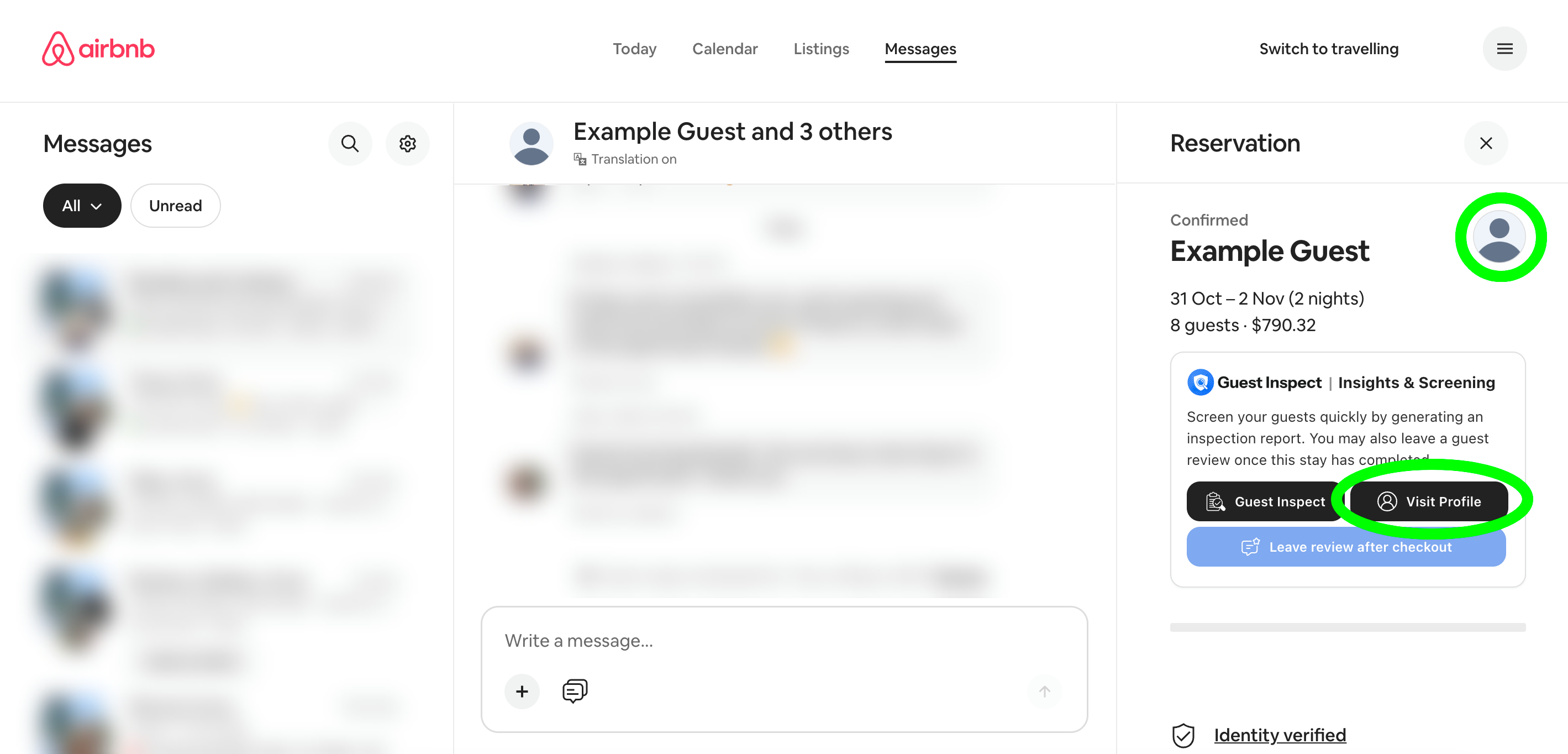
Booking.com Guests
Open up the Booking.com hosting extranet and navigate to the reservation page containing the guest you’re trying to inspect. The reservation page URL will look like this: https://admin.booking.com/hotel/hoteladmin/extranet_ng/manage/booking.html?res_id=1234567890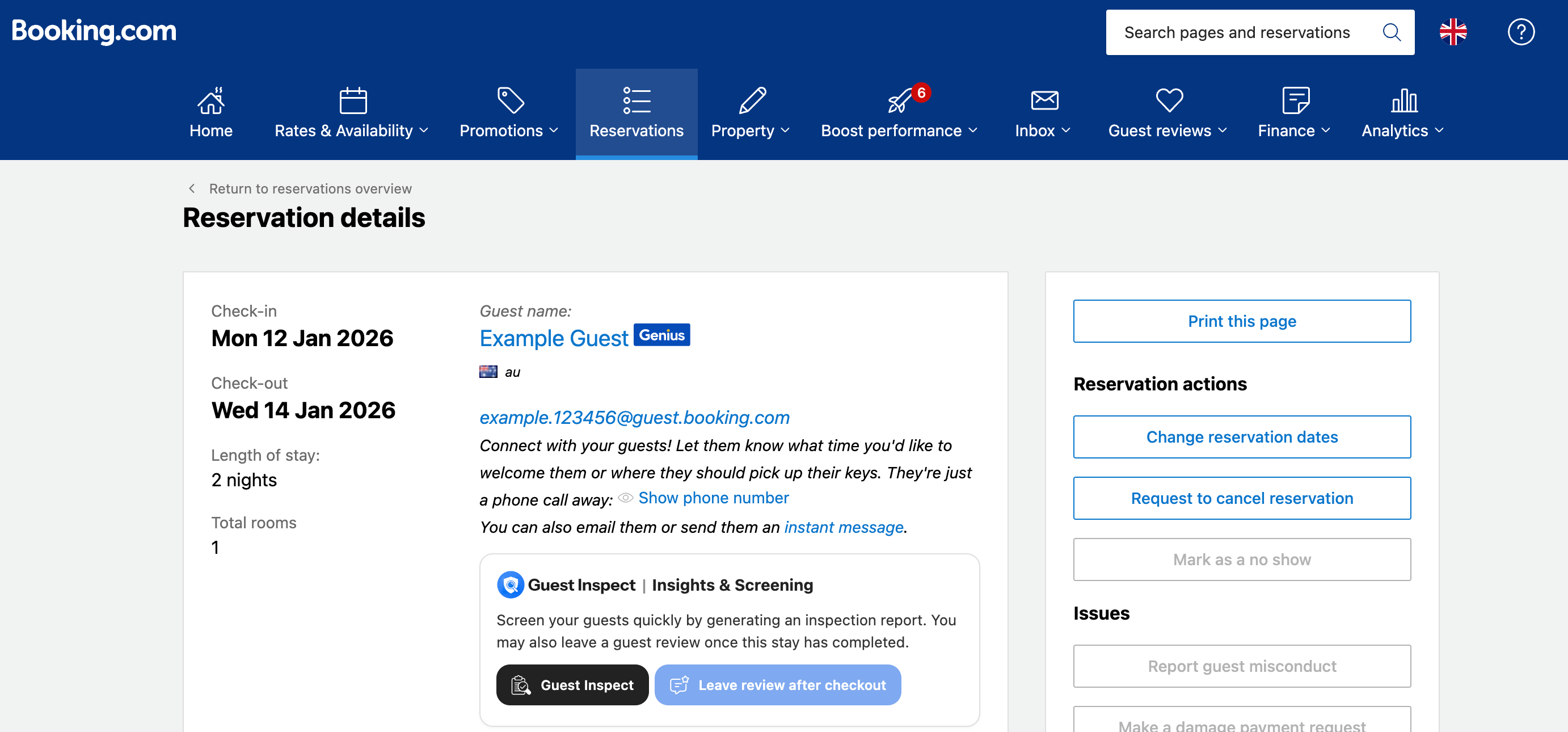
Step 2: Locate the Guest ID
AirBnB Guest
Click on the guest’s profile image which is highlighted by the green circle in the image above. Alternatively, if you have the Guest Inspect extension installed simply click the black Visit Profile button. Once you are on the guest’s profile page, you want to copy their ID which can be seen at the END of the page URL. This is highlighted in green below: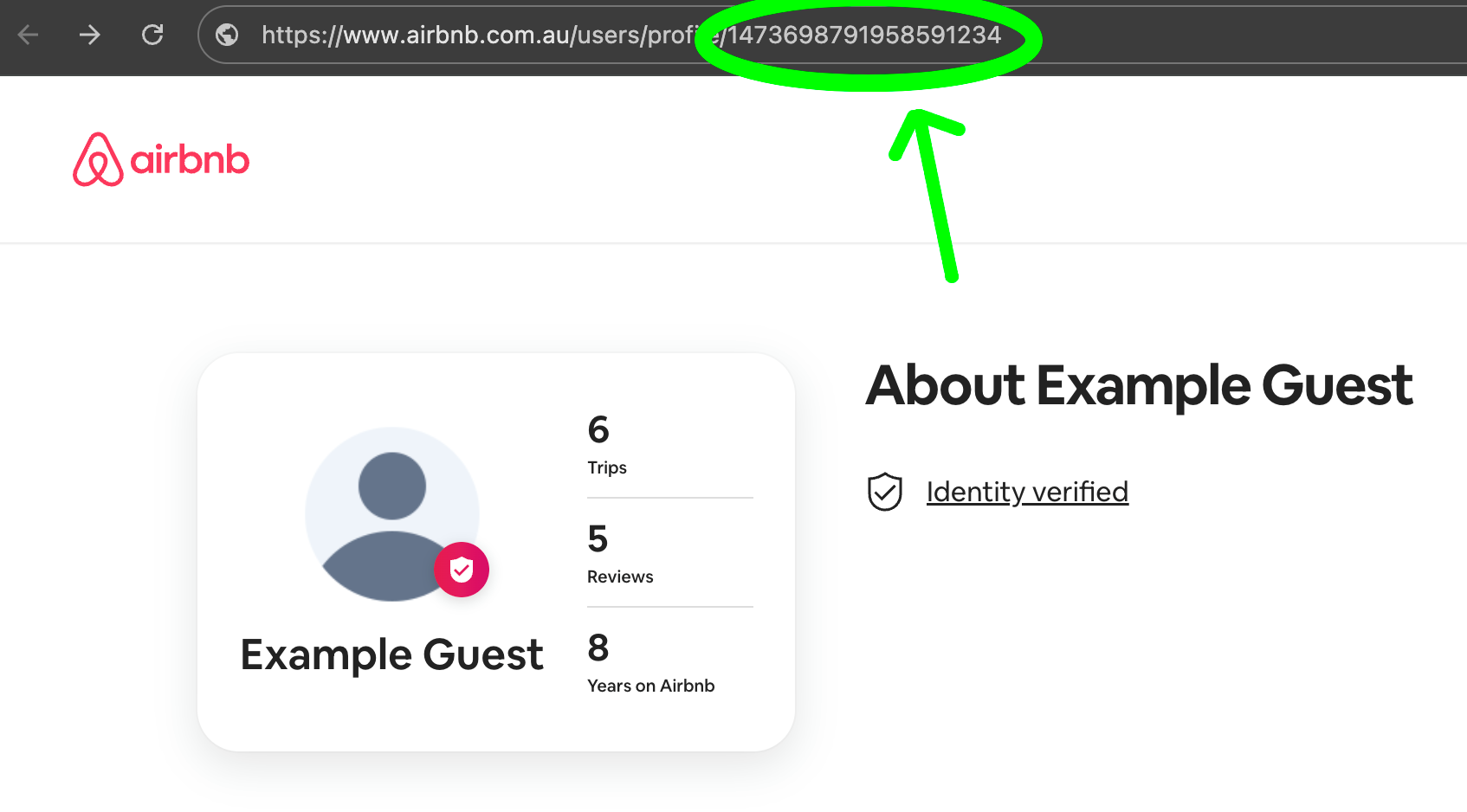
Booking.com Guests
Once you’re on the Booking.com reservation page with the guest you’re trying to inspect, click the blue “Show phone number” button then copy the entire phone number INCLUDING country code. This is highlighted in green below: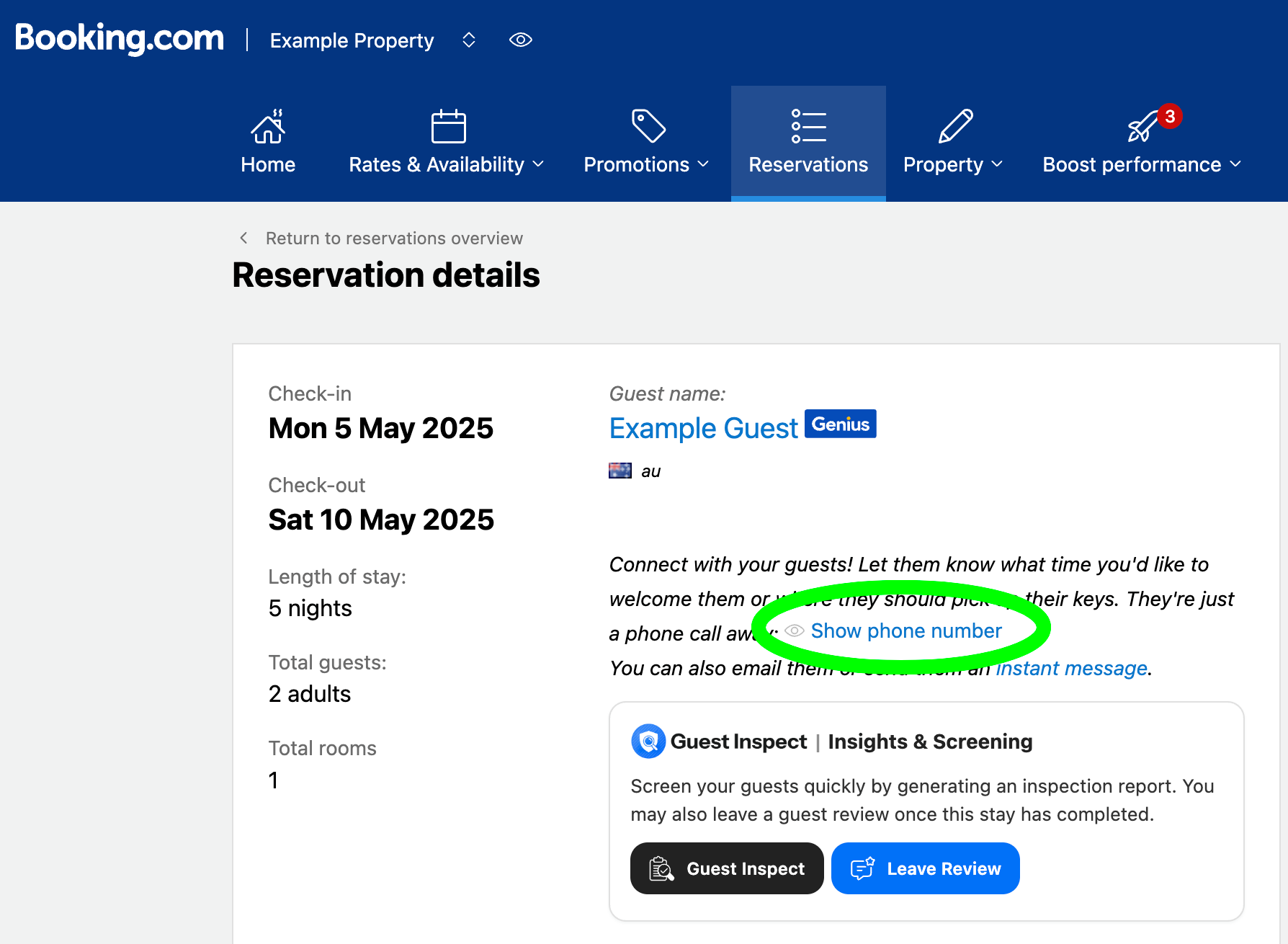
Step 3: Enter the Inspection Details
Head to the Inspect Guests tab in the dashboard then select either AirBnB or Booking.com from the platform dropdown. If this is an AirBnB guest, paste the guest ID you copied in the last step into the Guest ID box.

Step 4: View the Results
If the guest has any prior incidents, the report on the right will display them. You can also read the host’s review associated with the incident.