This refers to the Guest Inspection feature in our Chrome Extension. If you have not installed it yet, please do so here. Alternatively, a less detailed report can be generated through the website dashboard.
Step 1: Find the Guest Message or Reservation
AirBnB Guests
Open up the AirBnB hosting dashboard and navigate to your messages with the guest you’re trying to inspect, or to the reservation page if one exists. The messages page URL will look like this: https://www.airbnb.com/hosting/messages/1234567890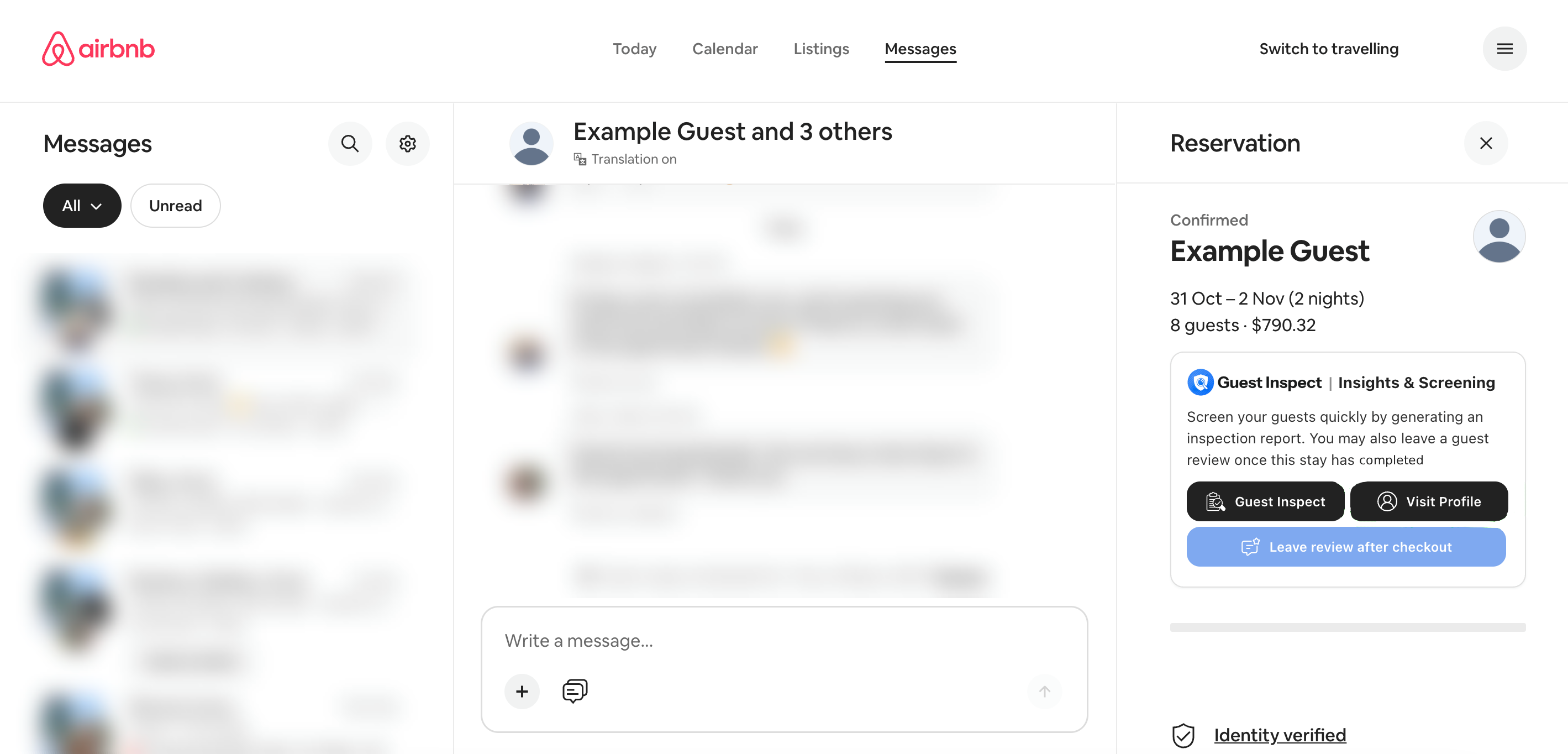
Booking.com Guests
Open up the Booking.com hosting extranet and navigate to the reservation page containing the guest you’re trying to inspect. The reservation page URL will look like this: https://admin.booking.com/hotel/hoteladmin/extranet_ng/manage/booking.html?res_id=1234567890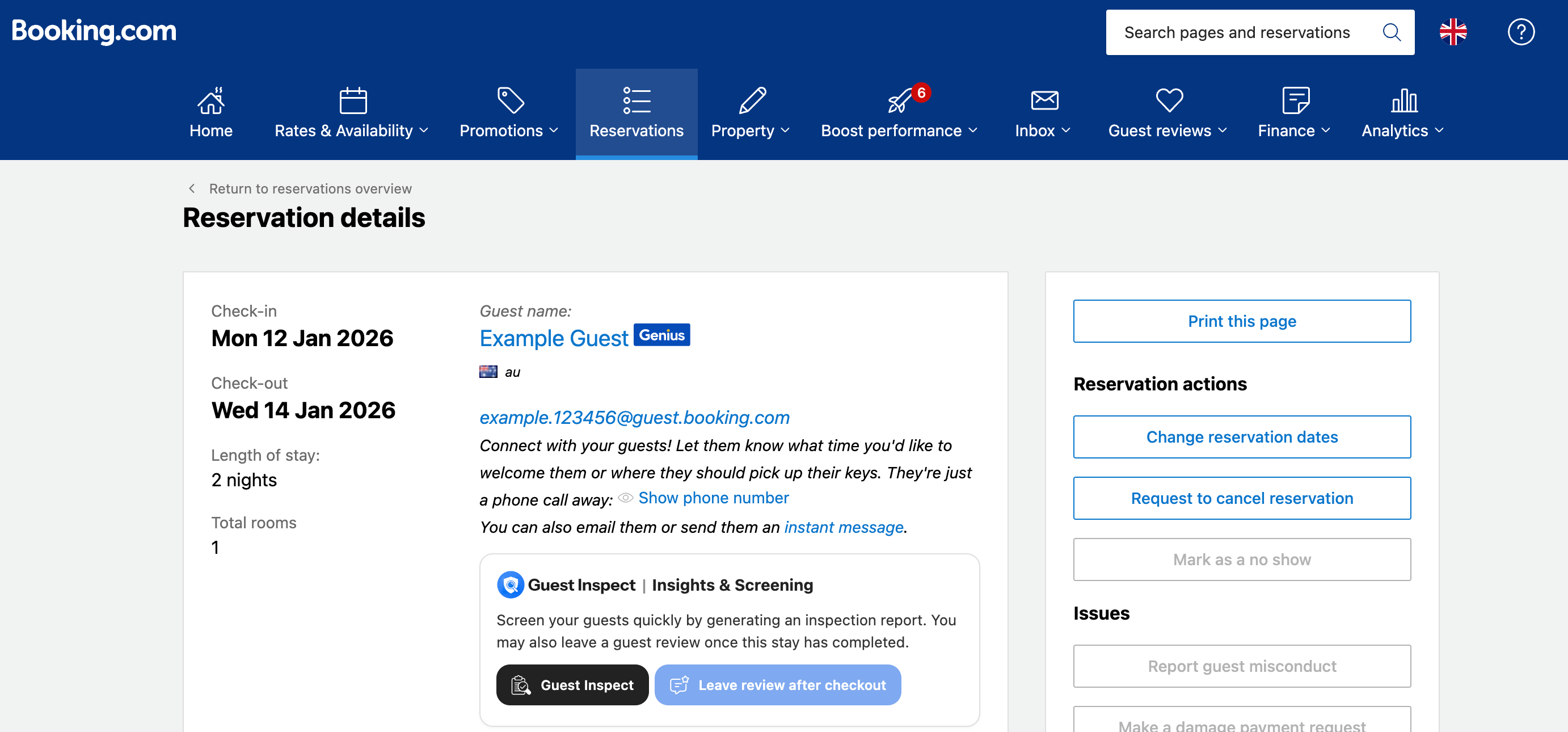
Step 2: Click the Guest Inspect Button
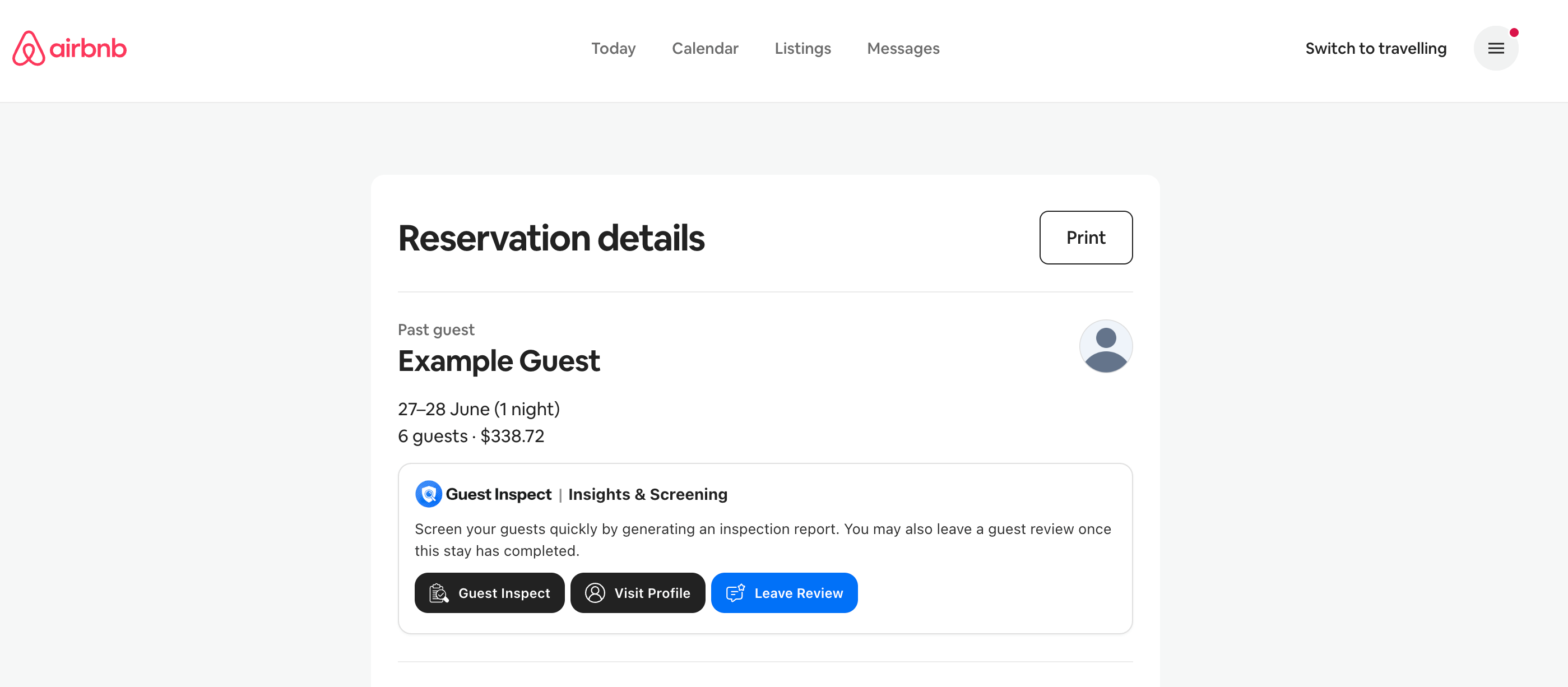
Assuming you have correctly installed and logged into the Chrome extension, it will create an area on the page with a black Guest Inspect button. This sometimes may take a few seconds to appear, and depending on the rental platform may appear in different places. Please refer to the images above which show the location for AirBnB and Booking.com.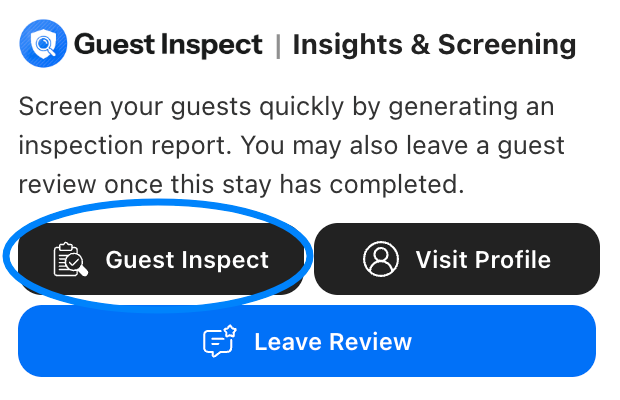
Step 3: View the Report
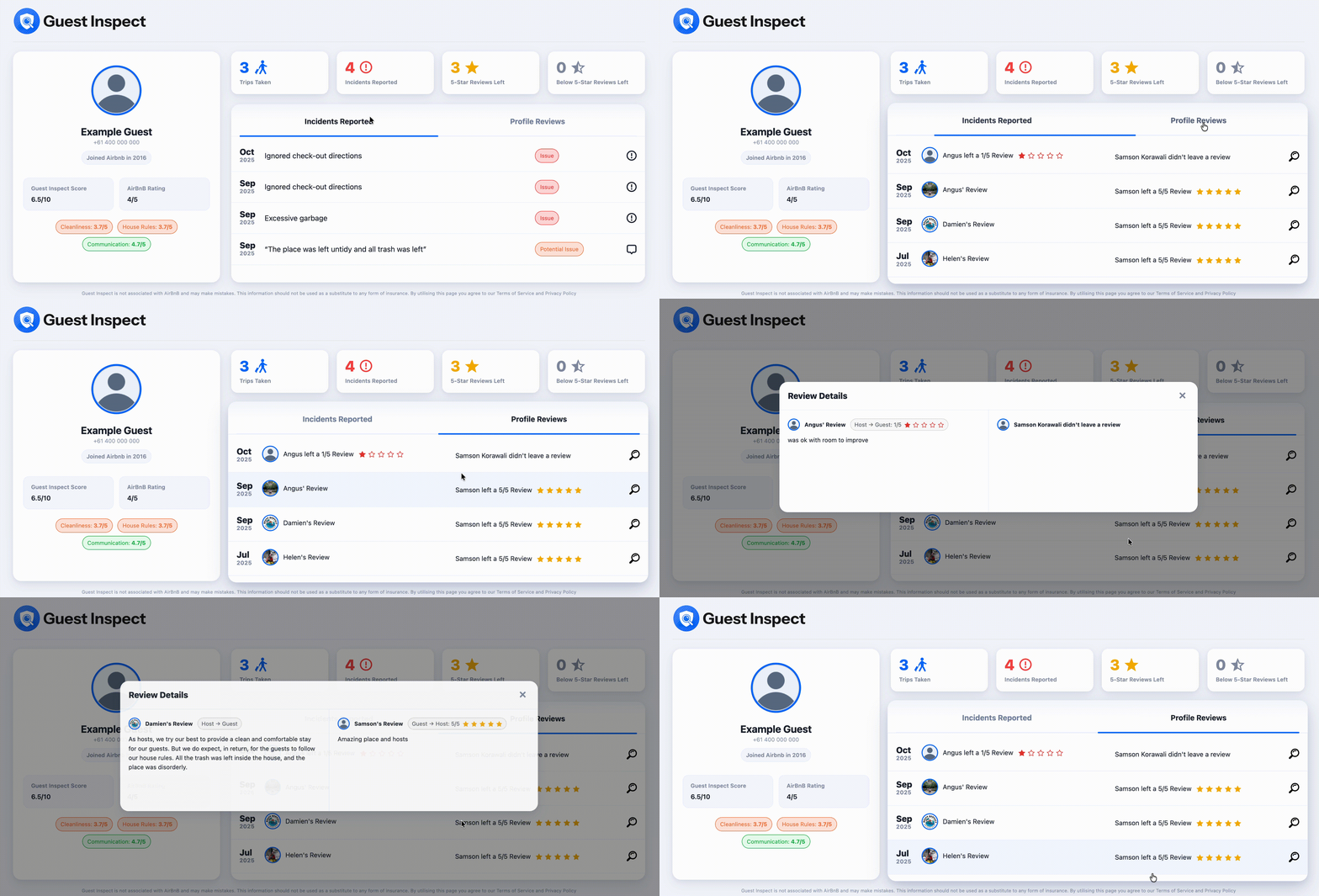
A guest inspection report has 2 main sections: the guest’s information on the left, and their profile history on the right.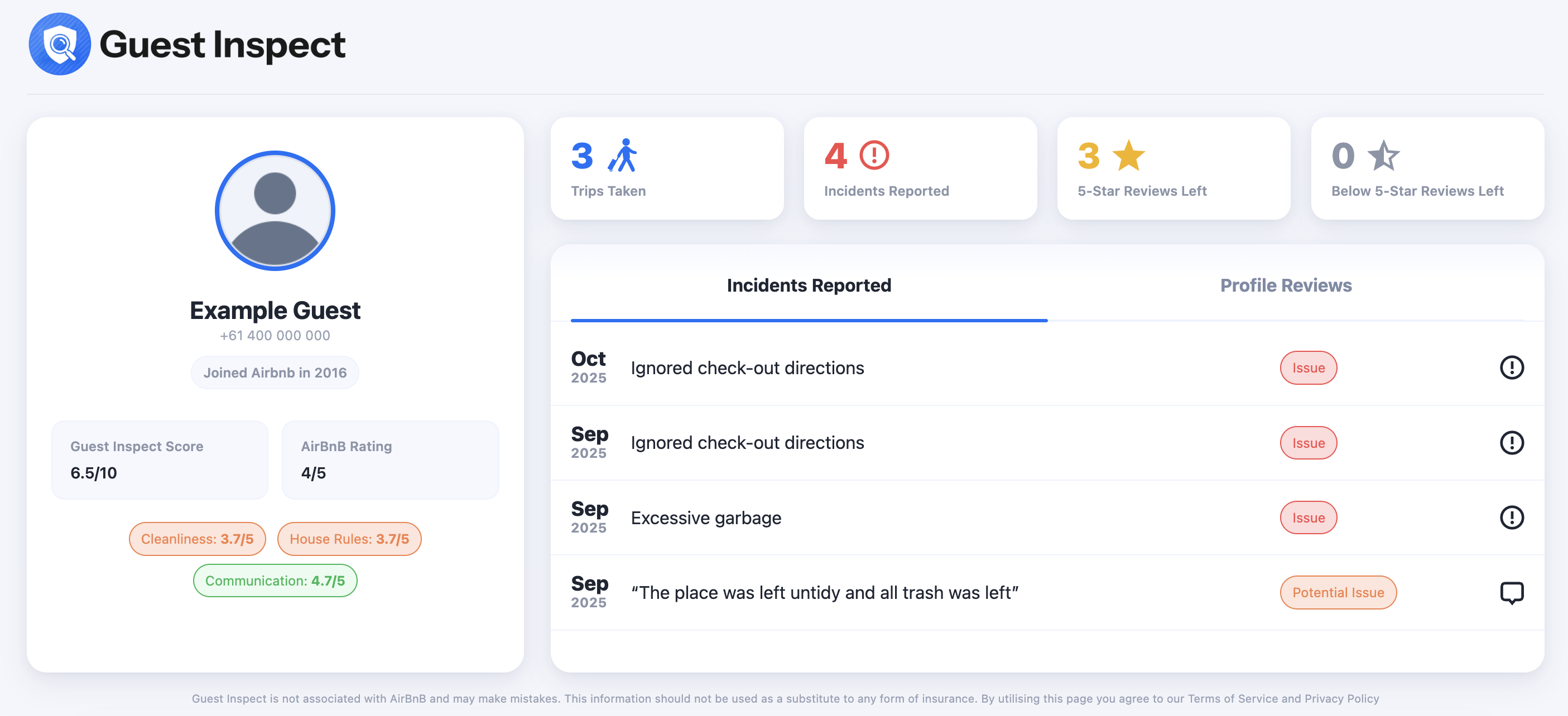
Left Side: Guest Information
The guest information on the left is fairly self-explanatory, but it also contains their Guest Inspect Score and Platform Rating. The Guest Inspect Score is an AI generated rating we base on several factors such as platform & guest inspect reviews, incidents, number of trips and more. The platform rating is the score that AirBnB or Booking.com assigns a guest. It’s important to note that both of these scores aren’t always available, especially for new guests.Right Side: Guest History
The guest’s profile history on the right will surface any incidents and potential incidents they may have caused across several rental platforms, as well as some platform-specific stats. You can also switch the table view by clicking Profile Reviews and it’ll then display any reviews prior hosts have left, as well as the guest’s reciprocal review if they left one. You may read the detailed review comments by clicking on any row in the table.