> ## Documentation Index
> Fetch the complete documentation index at: https://docs.guestinspect.com/llms.txt
> Use this file to discover all available pages before exploring further.
# Leave Guest Reviews
This refers to the Guest Inspect review feature in our Chrome Extension. If you have not installed it yet, please do so [here](/extension/how-to-install-extension).
**Leaving third-party Guest Inspect reviews is a powerful tool that allows hosts to review guests on rental platforms that previously haven't allowed this.**
For the time being, Guest Inspect reviews can only be submitted through our Chrome extension so that we can ensure they are associated with verified reservations.
## Step 1: Find the Guest Message or Reservation
### AirBnB Guests
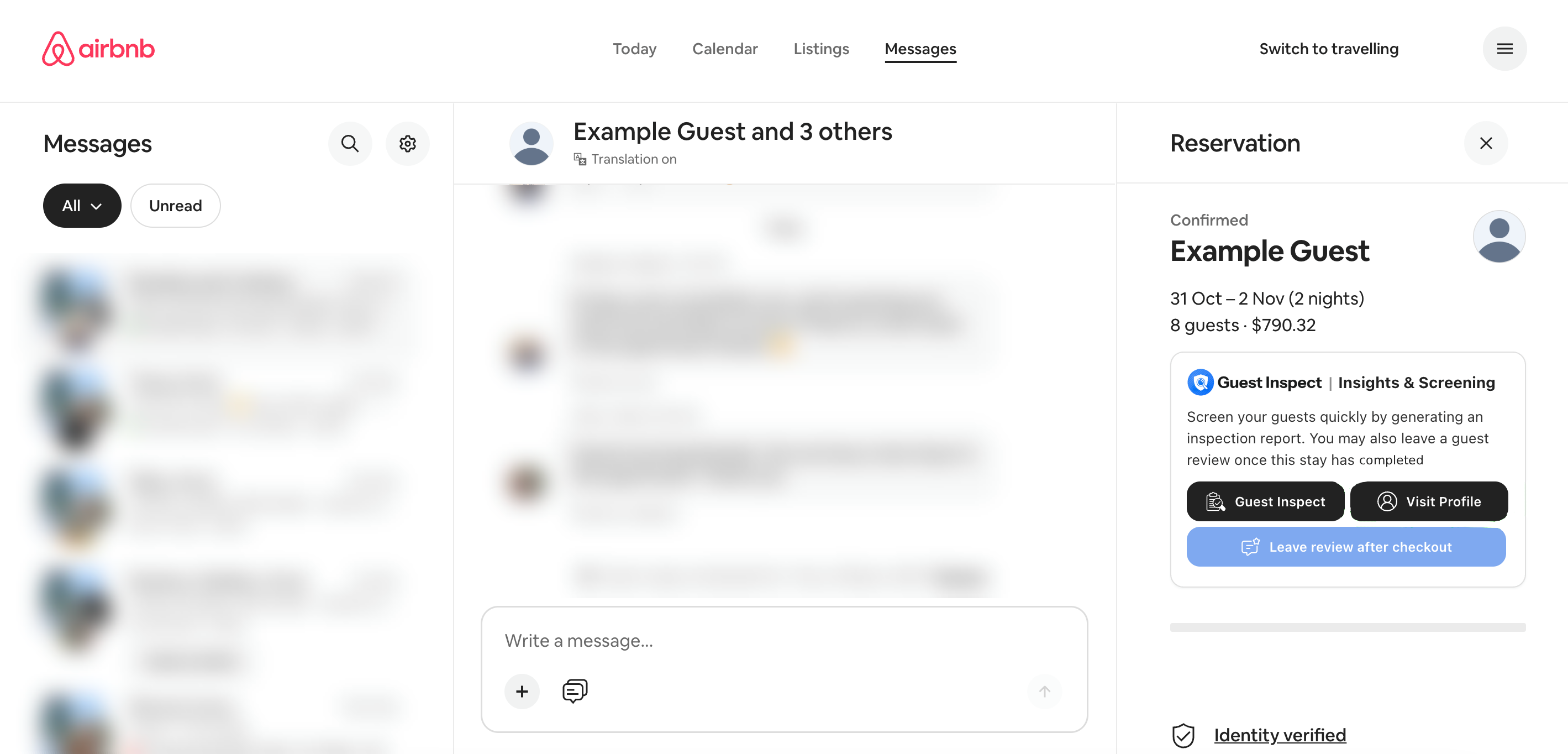
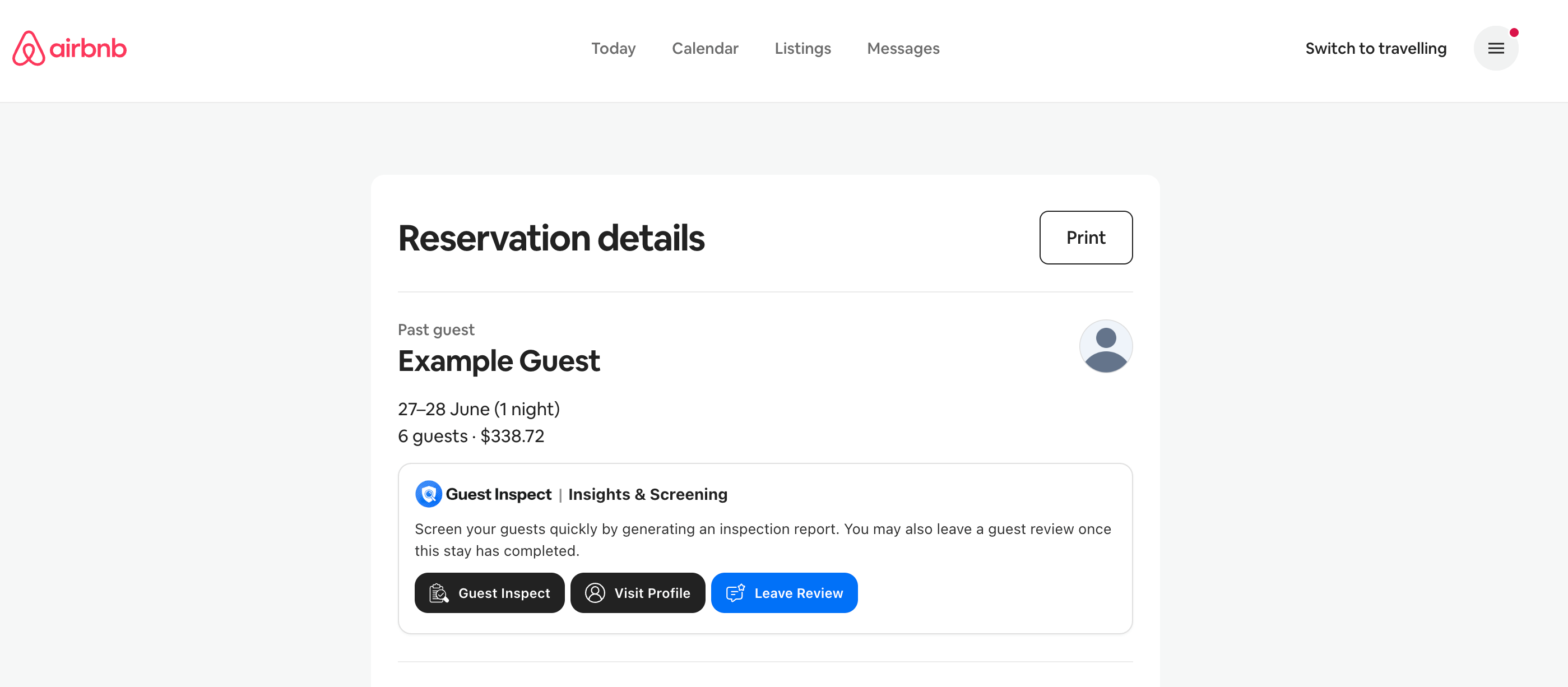
Open up the AirBnB hosting dashboard and navigate to your messages with the guest you're trying to review, or to the reservation page if one exists.
The messages page URL will look like this: [https://www.airbnb.com/hosting/messages/1234567890](https://www.airbnb.com/hosting/messages/1234567890)
 Or the reservation page URL will look like this: [https://www.airbnb.com/hosting/reservations/details/HM12345678](https://www.airbnb.com/hosting/reservations/details/HM12345678)
 ### Booking.com Guests
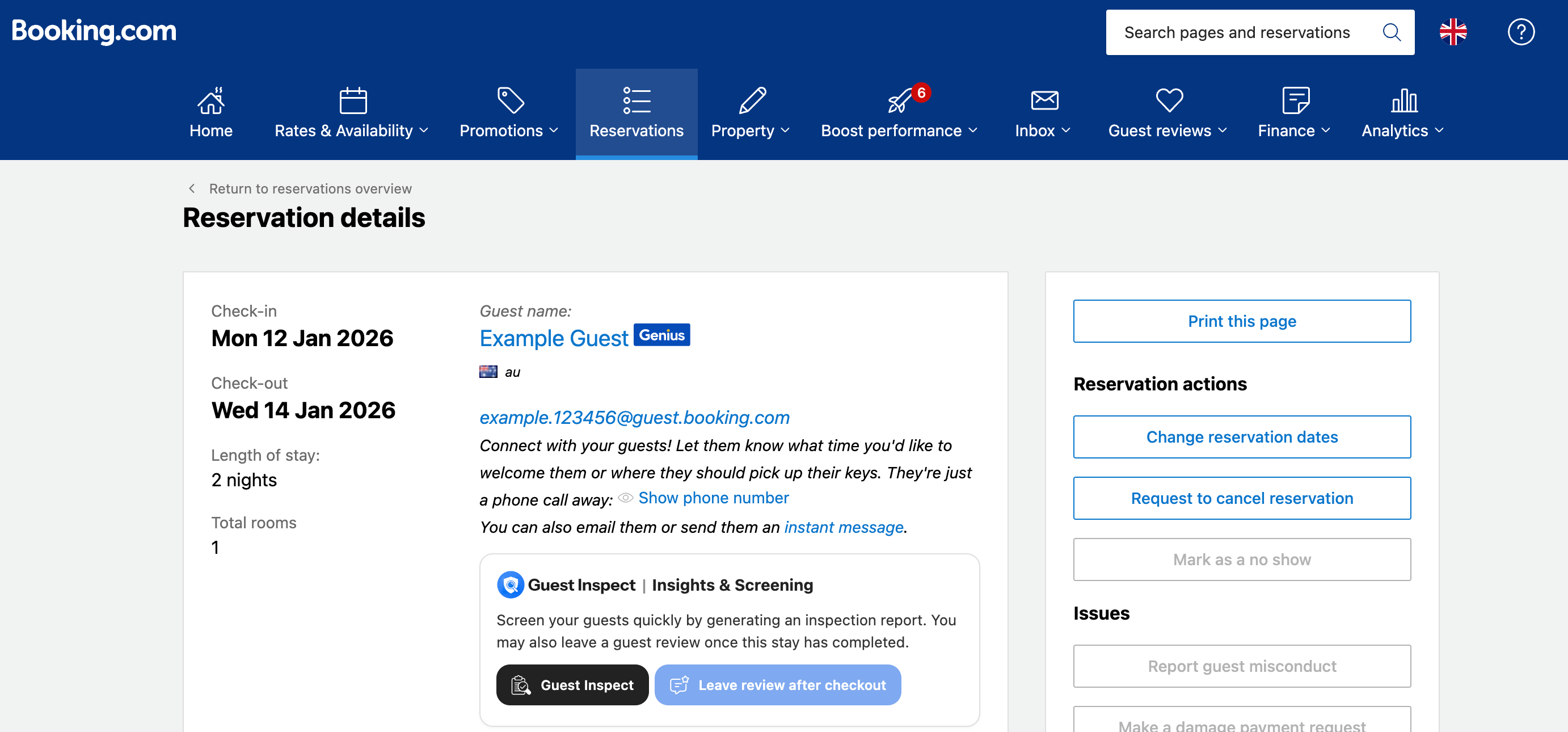
Open up the Booking.com hosting extranet and navigate to the reservation page containing the guest you're trying to review.
The reservation page URL will look like this: [https://admin.booking.com/hotel/hoteladmin/extranet\_ng/manage/booking.html?res\_id=1234567890](https://admin.booking.com/hotel/hoteladmin/extranet_ng/manage/booking.html?res_id=1234567890)
### Booking.com Guests
Open up the Booking.com hosting extranet and navigate to the reservation page containing the guest you're trying to review.
The reservation page URL will look like this: [https://admin.booking.com/hotel/hoteladmin/extranet\_ng/manage/booking.html?res\_id=1234567890](https://admin.booking.com/hotel/hoteladmin/extranet_ng/manage/booking.html?res_id=1234567890)
 ## Step 2: Click the Leave Review Button
If you've installed the extension or logged in **AFTER** the page has loaded, you will need to refresh the page for the button to appear.
Assuming you have correctly installed and logged into the [Chrome extension](/extension/how-to-install-extension), it will create an area on the page with a blue **Leave Review** button. This sometimes may take a few seconds to appear, and depending on the rental platform may appear in different places. Please refer to the images above which show the location for AirBnB and Booking.com.
**It is important to note that you will only be able to leave a review after a reservation has completed. The button will be disabled until such time.**
## Step 2: Click the Leave Review Button
If you've installed the extension or logged in **AFTER** the page has loaded, you will need to refresh the page for the button to appear.
Assuming you have correctly installed and logged into the [Chrome extension](/extension/how-to-install-extension), it will create an area on the page with a blue **Leave Review** button. This sometimes may take a few seconds to appear, and depending on the rental platform may appear in different places. Please refer to the images above which show the location for AirBnB and Booking.com.
**It is important to note that you will only be able to leave a review after a reservation has completed. The button will be disabled until such time.**
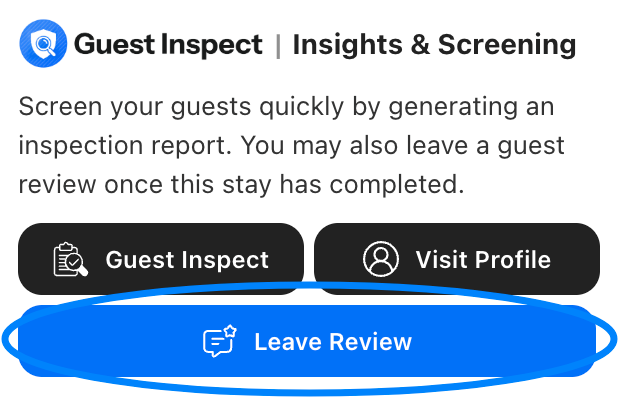 Simply click this button and a small review window will open up from the Chrome extension.
## Step 3: Fill in the Review
Guest Inspect is not associated with any rental platform. By submitting a guest review, you agree to our [Terms of Service](https://www.guestinspect.com/terms) and [Privacy Policy](https://www.guestinspect.com/privacy).
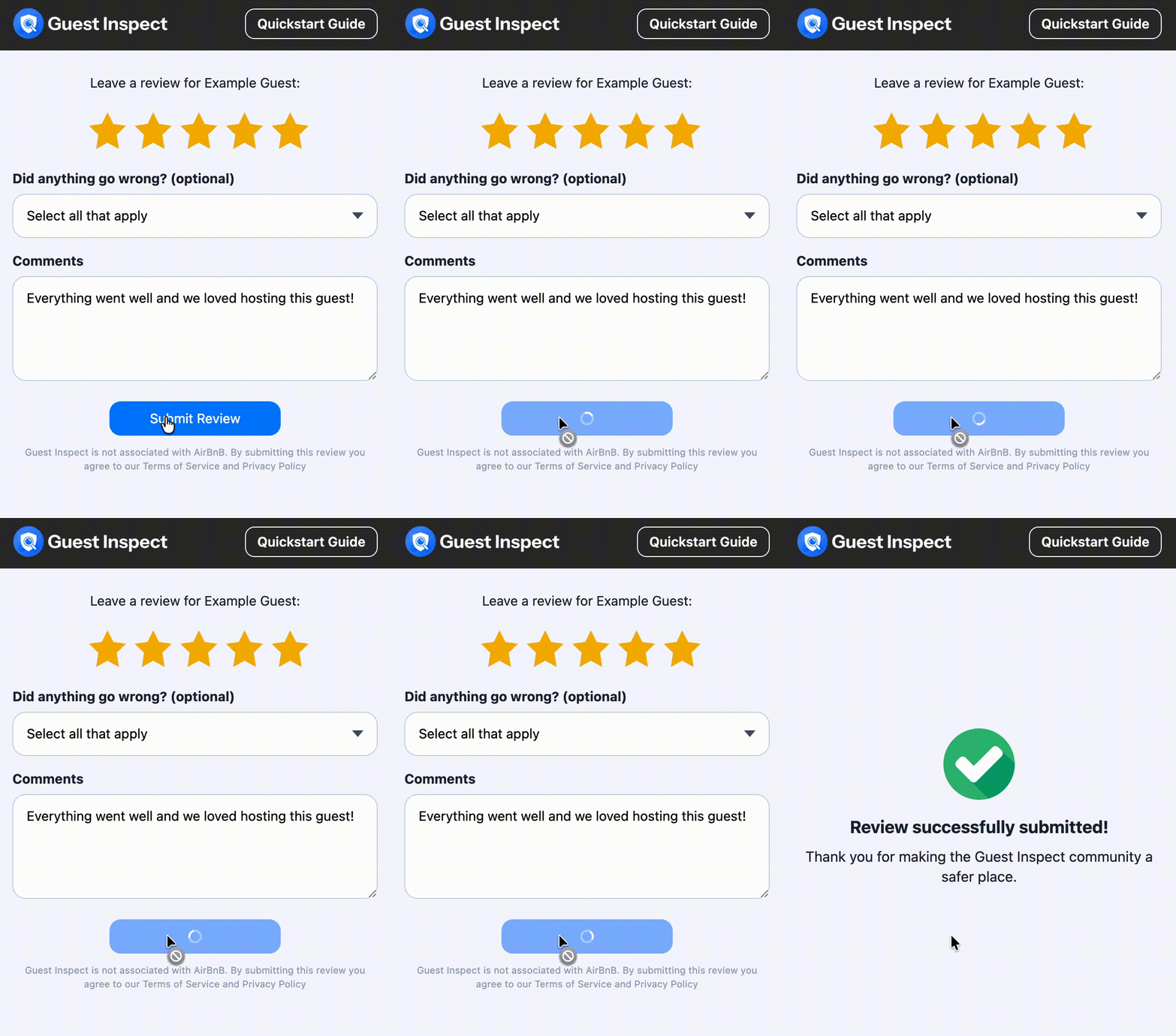
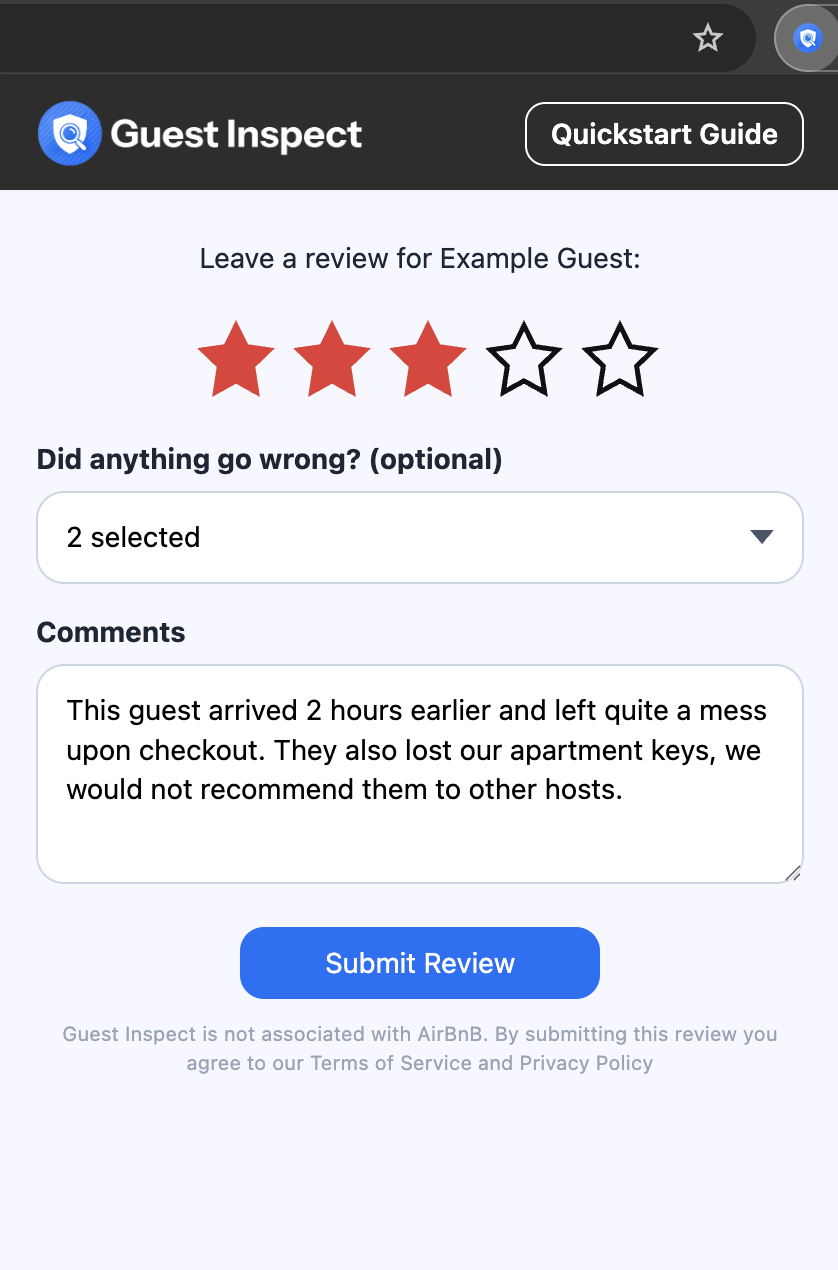
The submit review window has 3 main sections: overall star rating, incidents (optional), and review comment.
Simply click this button and a small review window will open up from the Chrome extension.
## Step 3: Fill in the Review
Guest Inspect is not associated with any rental platform. By submitting a guest review, you agree to our [Terms of Service](https://www.guestinspect.com/terms) and [Privacy Policy](https://www.guestinspect.com/privacy).
The submit review window has 3 main sections: overall star rating, incidents (optional), and review comment.
 ### Overall Star Rating
Please click on the star corresponding to the overall public rating that you would give this guest out of 5. The stars will fill in once clicked.
### Overall Star Rating
Please click on the star corresponding to the overall public rating that you would give this guest out of 5. The stars will fill in once clicked.
 As a general rule of thumb, please follow these rating guidelines:
**You would recommend this guest to other hosts:**
* 5 Stars: Guest followed all rules and no incidents occurred.
* 4 Stars: Guest may have broken 1 minor rule but was otherwise ok.
**You would NOT recommend this guest to other hosts:**
* 3 Stars: Guest caused 1 or more incidents or broke multiple rules.
* 2 Stars: Guest caused several major incidents requiring extra cleaning.
* 1 Star: Guest caused significant damage to your property, forcing you to cancel or delay future reservations, or you felt threatened as a host.
### Incidents (optional)
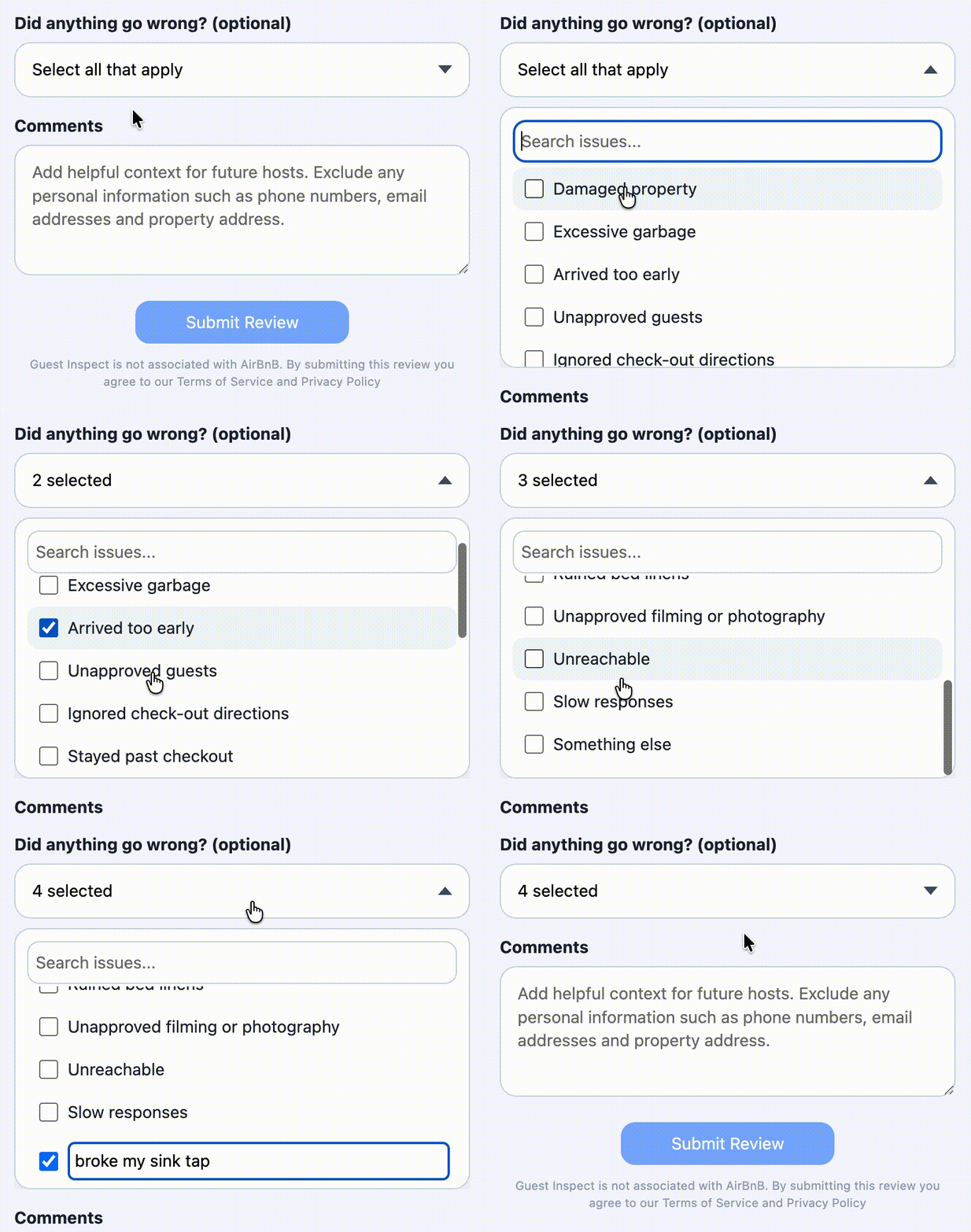
This part of the review is optional and should only be used if your guest caused any incidents during their stay. Click the dropdown and select as many incidents that are applicable.
If you cannot find a preset incident that applies, click the **something else** option then briefly fill in what happened.
As a general rule of thumb, please follow these rating guidelines:
**You would recommend this guest to other hosts:**
* 5 Stars: Guest followed all rules and no incidents occurred.
* 4 Stars: Guest may have broken 1 minor rule but was otherwise ok.
**You would NOT recommend this guest to other hosts:**
* 3 Stars: Guest caused 1 or more incidents or broke multiple rules.
* 2 Stars: Guest caused several major incidents requiring extra cleaning.
* 1 Star: Guest caused significant damage to your property, forcing you to cancel or delay future reservations, or you felt threatened as a host.
### Incidents (optional)
This part of the review is optional and should only be used if your guest caused any incidents during their stay. Click the dropdown and select as many incidents that are applicable.
If you cannot find a preset incident that applies, click the **something else** option then briefly fill in what happened.
 ### Review Comment
Ensure your review comments **DO NOT** include any personal information about the guest such as, but not limited to, phone numbers, email addresses and property address. Reviews in violation of this will be removed.
The final and most important part of your review is where you leave your comments about the guest and detail your experience with them. These comments will be shown alongside the star rating to other Guest Inspect hosts. Remember to be honest and fair!
## Step 4: Submit the Review
Once you've filled out the required fields (star rating & comment), click the blue **Submit Review** button at the bottom of the window. After a few seconds you will see a green tick if your review submitted successfully.
### Review Comment
Ensure your review comments **DO NOT** include any personal information about the guest such as, but not limited to, phone numbers, email addresses and property address. Reviews in violation of this will be removed.
The final and most important part of your review is where you leave your comments about the guest and detail your experience with them. These comments will be shown alongside the star rating to other Guest Inspect hosts. Remember to be honest and fair!
## Step 4: Submit the Review
Once you've filled out the required fields (star rating & comment), click the blue **Submit Review** button at the bottom of the window. After a few seconds you will see a green tick if your review submitted successfully.