> ## Documentation Index
> Fetch the complete documentation index at: https://docs.guestinspect.com/llms.txt
> Use this file to discover all available pages before exploring further.
# How to Install Chrome Extension
> Installation takes less than 2 minutes.
### Step 1: Install our Chrome extension
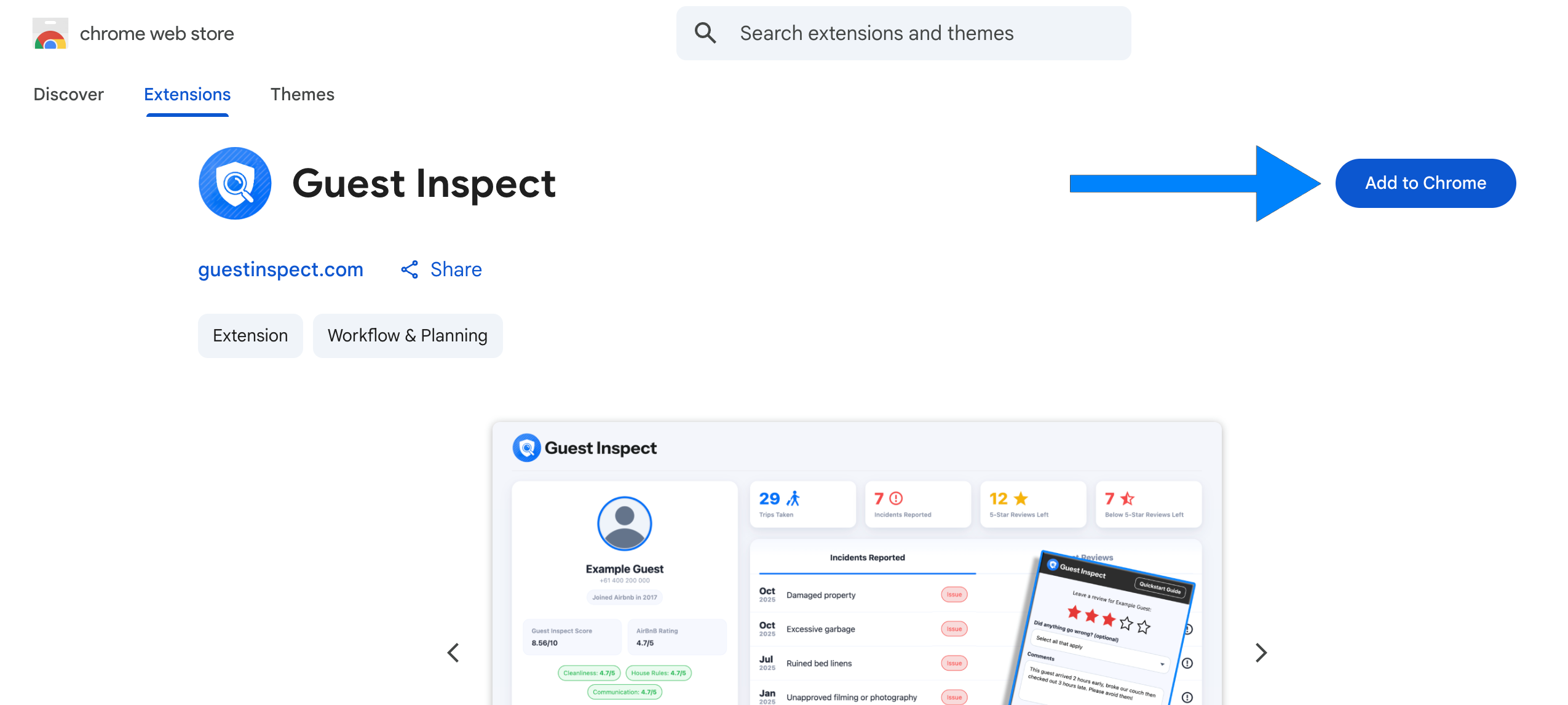
Open your Google Chrome browser and visit our [chrome extension](https://chromewebstore.google.com/detail/diipaemgmlhiibkmkcepdaekbfhbheib) in the web store. Click the blue **Add to Chrome** button on the right side of the page to install the extension.
 ### Step 2: Pin the extension
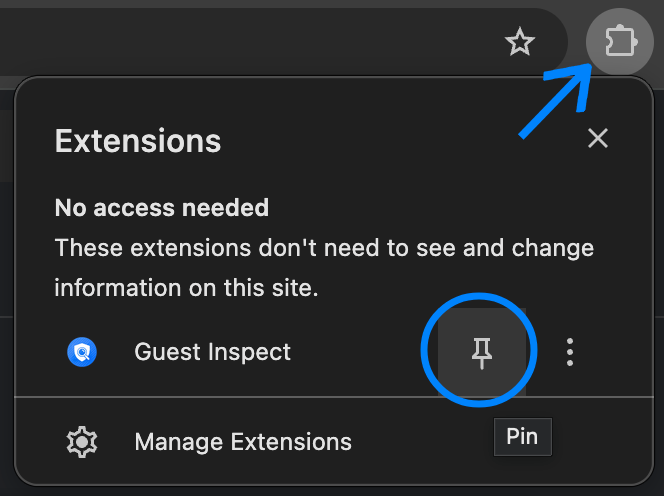
Now that you've installed the extension, click the jigsaw piece to the right of the URL bar then click the pin button next to Guest Inspect.
### Step 2: Pin the extension
Now that you've installed the extension, click the jigsaw piece to the right of the URL bar then click the pin button next to Guest Inspect.
 ### Step 2: Login to the extension
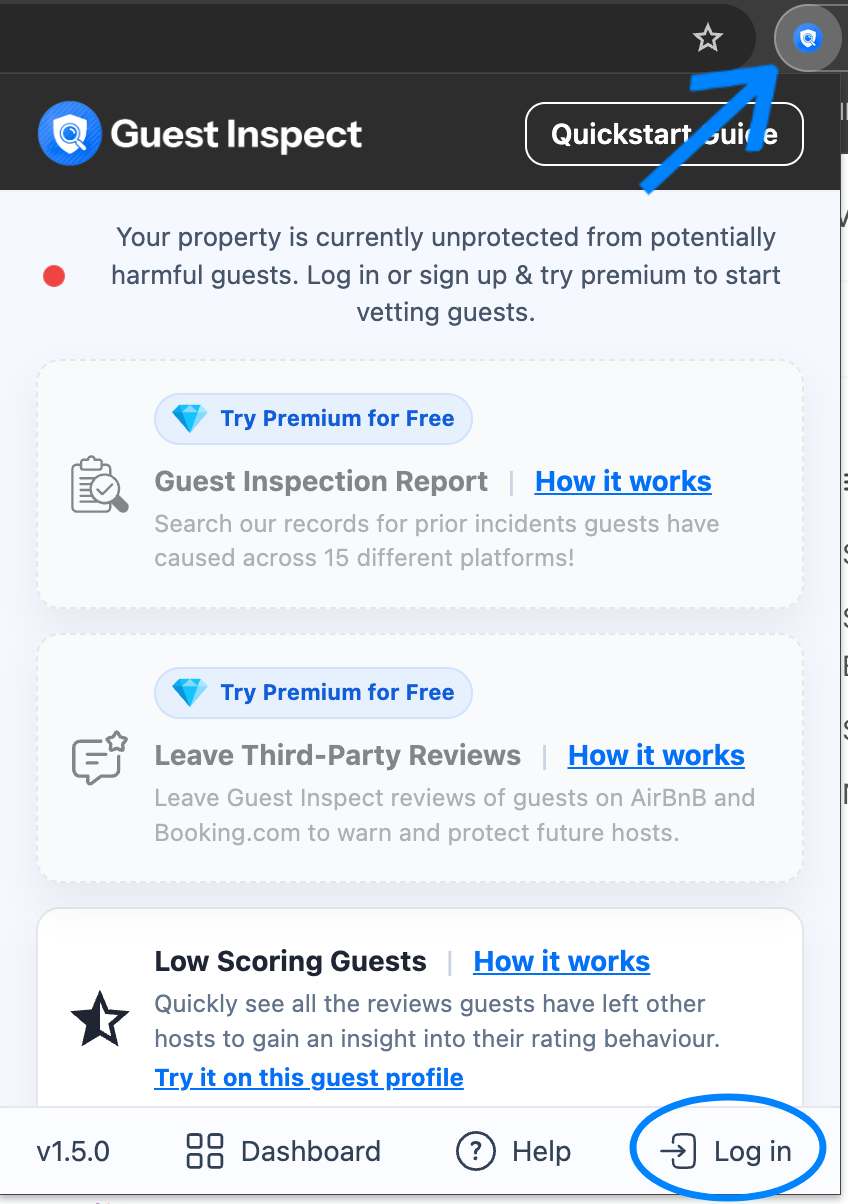
Open the Guest Inspect extension by clicking the icon which should now show to the right of your URL bar. Now click **Log in** in the bottom right and enter in your Guest Inspect account credentials.
### Step 2: Login to the extension
Open the Guest Inspect extension by clicking the icon which should now show to the right of your URL bar. Now click **Log in** in the bottom right and enter in your Guest Inspect account credentials.