> ## Documentation Index
> Fetch the complete documentation index at: https://docs.guestinspect.com/llms.txt
> Use this file to discover all available pages before exploring further.
# Guest Inspection Report
This refers to the Guest Inspection feature in our website dashboard. Alternatively, a **more detailed report** can be generated through our [Chrome extension](/extension/guest-inspection-report).
**Generating a guest inspection report is the most popular tool that we offer, as it allows hosts to screen potential guests before accepting a booking.**
This tool will search our database and show you any incidents a guest may have caused across 15 different platforms.
## Step 1: Find the Guest Message or Reservation
### AirBnB Guests
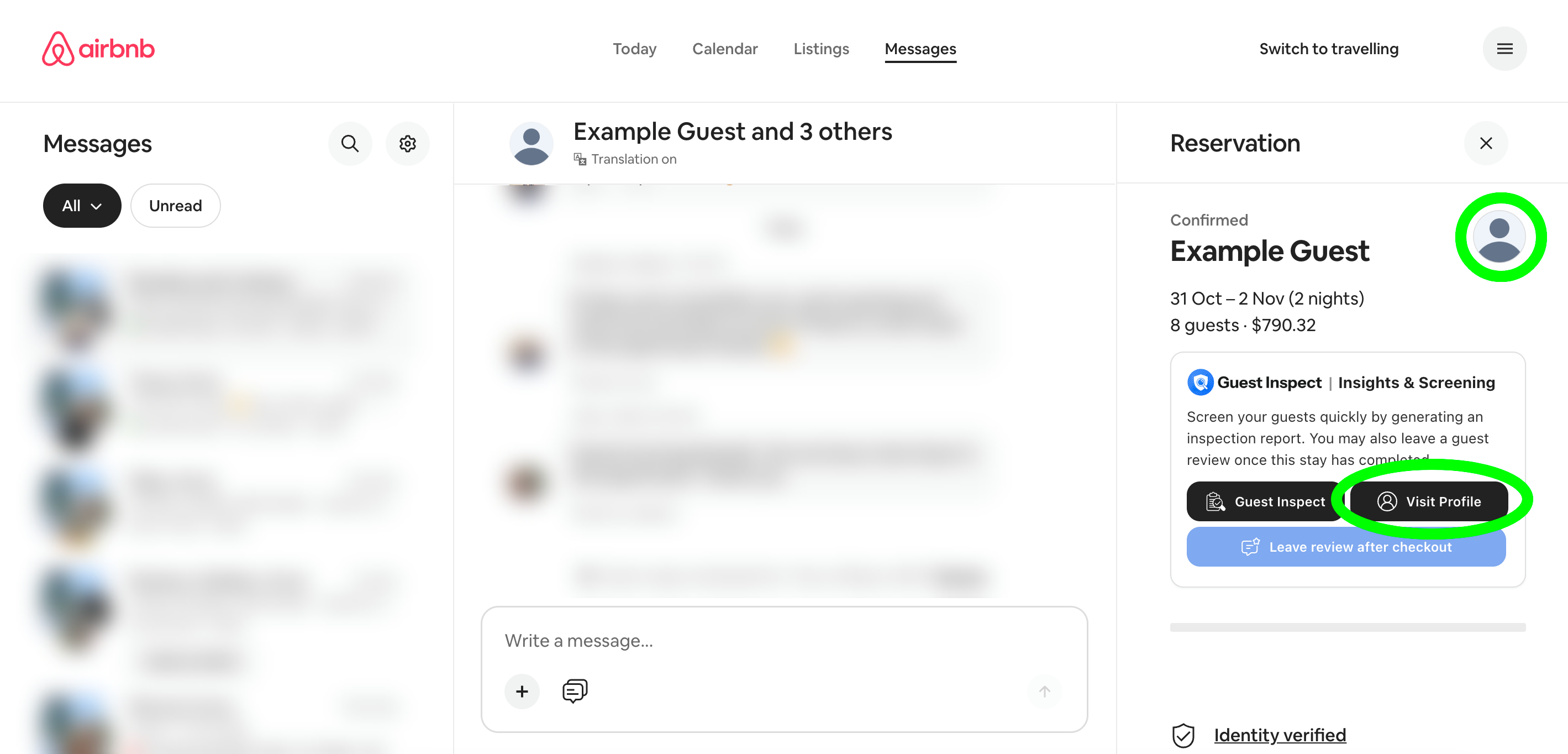
Open up the AirBnB hosting dashboard and navigate to your messages with the guest you're trying to inspect.
The messages page URL will look like this: [https://www.airbnb.com/hosting/messages/1234567890](https://www.airbnb.com/hosting/messages/1234567890)
 ### Booking.com Guests
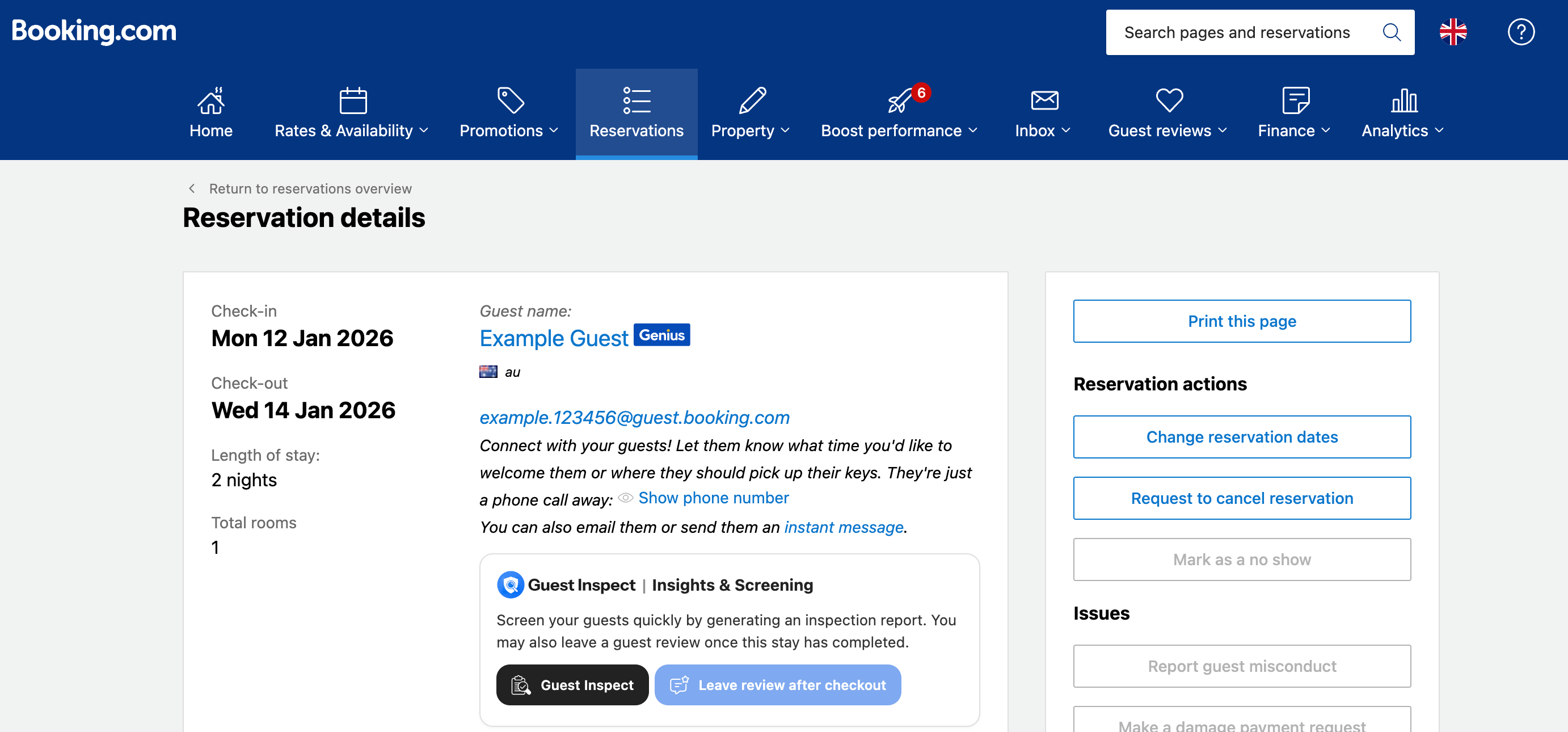
Open up the Booking.com hosting extranet and navigate to the reservation page containing the guest you're trying to inspect.
The reservation page URL will look like this: [https://admin.booking.com/hotel/hoteladmin/extranet\_ng/manage/booking.html?res\_id=1234567890](https://admin.booking.com/hotel/hoteladmin/extranet_ng/manage/booking.html?res_id=1234567890)
### Booking.com Guests
Open up the Booking.com hosting extranet and navigate to the reservation page containing the guest you're trying to inspect.
The reservation page URL will look like this: [https://admin.booking.com/hotel/hoteladmin/extranet\_ng/manage/booking.html?res\_id=1234567890](https://admin.booking.com/hotel/hoteladmin/extranet_ng/manage/booking.html?res_id=1234567890)
 ## Step 2: Locate the Guest ID
### AirBnB Guest
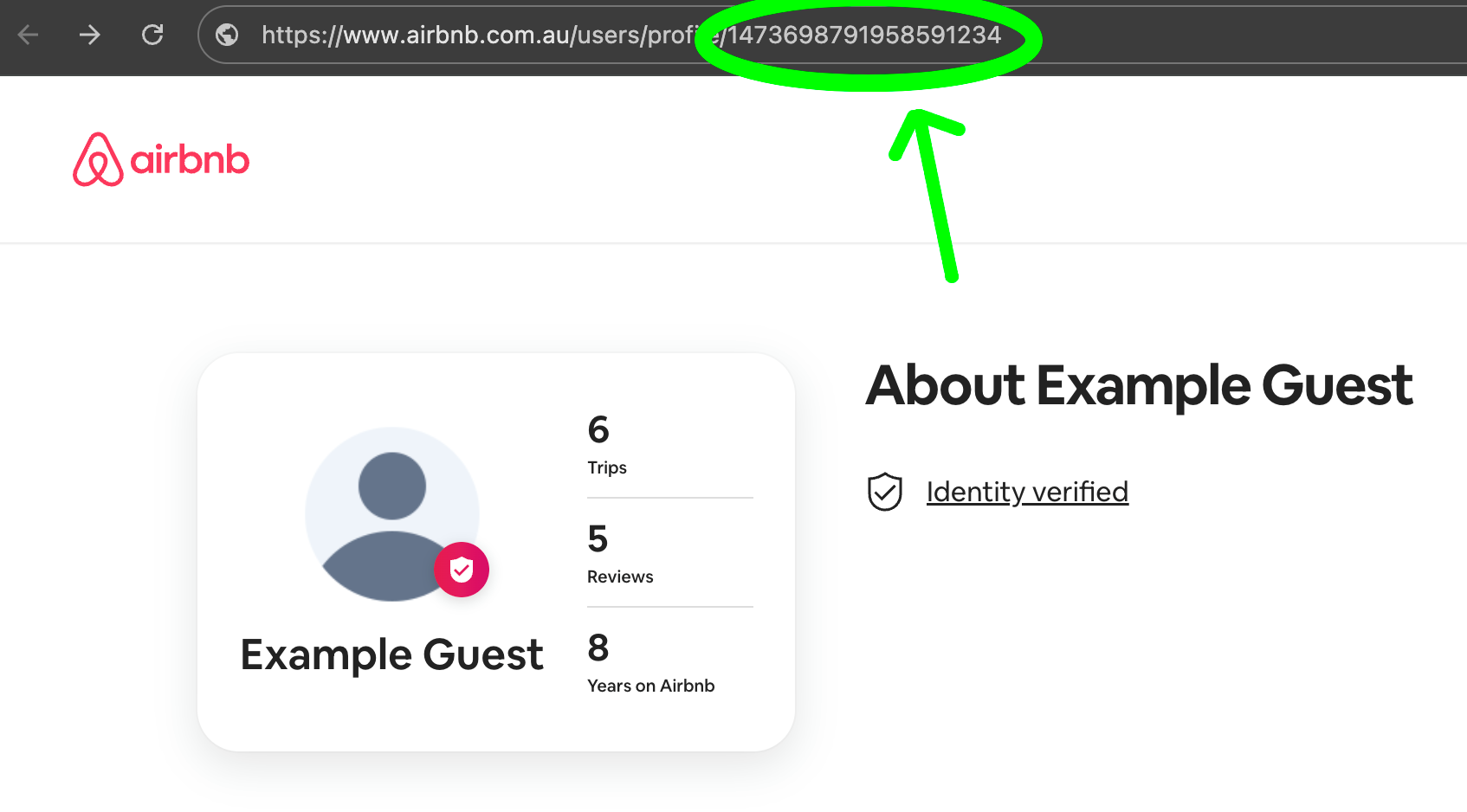
Click on the guest's profile image which is highlighted by the green circle in the image above. Alternatively, if you have the Guest Inspect extension installed simply click the black **Visit Profile** button.
Once you are on the guest's profile page, you want to **copy their ID** which can be seen at the **END** of the page URL. This is highlighted in green below:
## Step 2: Locate the Guest ID
### AirBnB Guest
Click on the guest's profile image which is highlighted by the green circle in the image above. Alternatively, if you have the Guest Inspect extension installed simply click the black **Visit Profile** button.
Once you are on the guest's profile page, you want to **copy their ID** which can be seen at the **END** of the page URL. This is highlighted in green below:
 ### Booking.com Guests
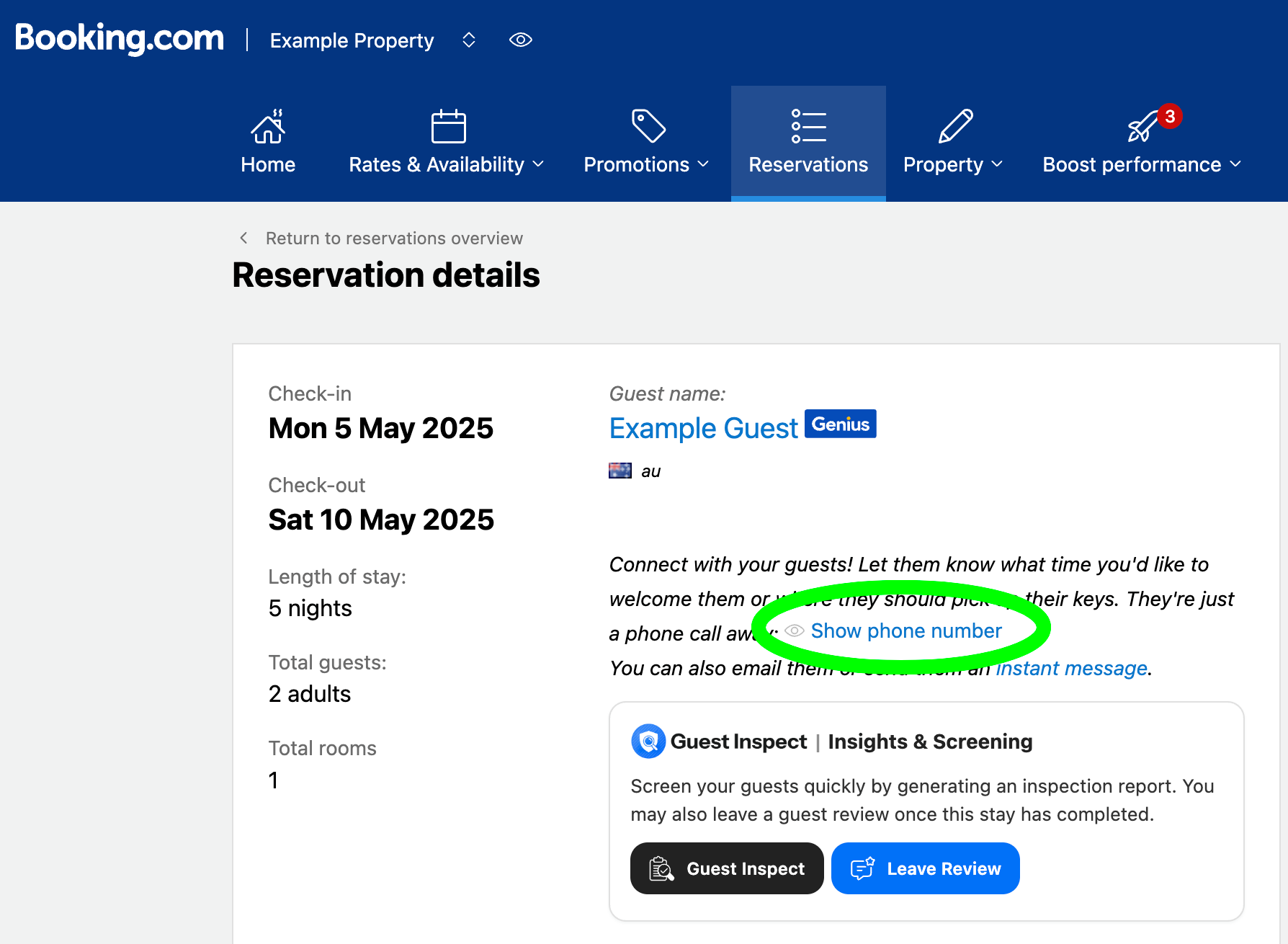
Once you're on the Booking.com reservation page with the guest you're trying to inspect, click the blue **"Show phone number"** button then copy the entire phone number **INCLUDING country code**. This is highlighted in green below:
### Booking.com Guests
Once you're on the Booking.com reservation page with the guest you're trying to inspect, click the blue **"Show phone number"** button then copy the entire phone number **INCLUDING country code**. This is highlighted in green below:
 ## Step 3: Enter the Inspection Details
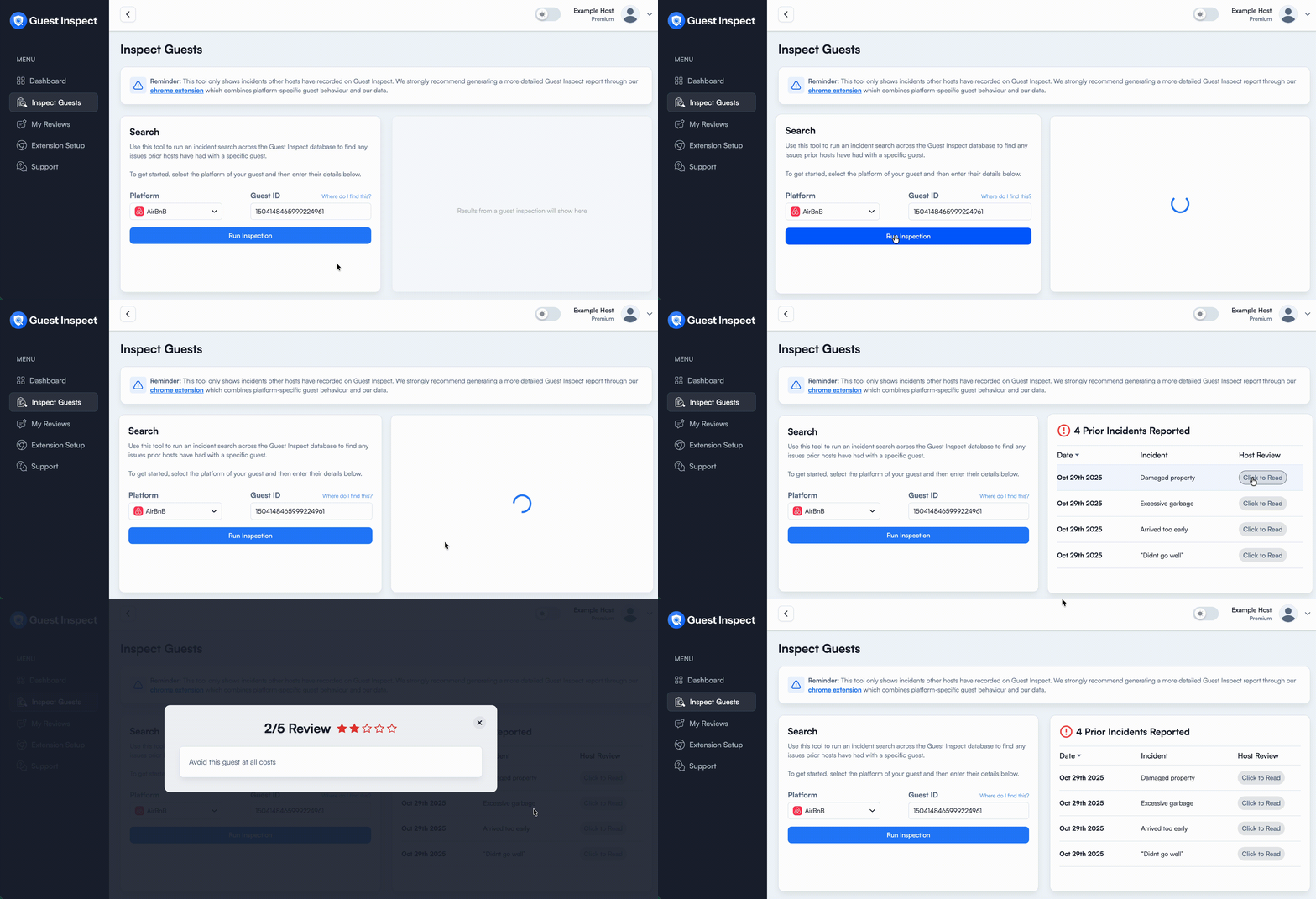
Head to the [Inspect Guests](https://app.guestinspect.com/inspect-guests) tab in the dashboard then select either AirBnB or Booking.com from the platform dropdown.
If this is an **AirBnB** guest, paste the guest ID you copied in the last step into the **Guest ID** box.
## Step 3: Enter the Inspection Details
Head to the [Inspect Guests](https://app.guestinspect.com/inspect-guests) tab in the dashboard then select either AirBnB or Booking.com from the platform dropdown.
If this is an **AirBnB** guest, paste the guest ID you copied in the last step into the **Guest ID** box.
 If this is a **Booking.com** guest, paste the guest phone number you copied in the last step into the **Guest Phone** box.
 Now click the large blue **Run Inspection** button and wait a few seconds for the inspection to take place.
## Step 4: View the Results
Guest Inspect is not associated with any rental platform and may make mistakes. This information should not be used as a substitute to any form of insurance, and we don't recommend accepting or rejecting a reservation solely on the information we may present. By utilising and accessing report data, you agree to our [Terms of Service](https://www.guestinspect.com/terms) and [Privacy Policy](https://www.guestinspect.com/privacy).
If the guest has any prior incidents, the report on the right will display them. You can also read the host's review associated with the incident.
Now click the large blue **Run Inspection** button and wait a few seconds for the inspection to take place.
## Step 4: View the Results
Guest Inspect is not associated with any rental platform and may make mistakes. This information should not be used as a substitute to any form of insurance, and we don't recommend accepting or rejecting a reservation solely on the information we may present. By utilising and accessing report data, you agree to our [Terms of Service](https://www.guestinspect.com/terms) and [Privacy Policy](https://www.guestinspect.com/privacy).
If the guest has any prior incidents, the report on the right will display them. You can also read the host's review associated with the incident.